This document guides the developer on how to use CAPI services
to purchase a Package. The reader is advised to familiarise
himself/herself with the purchase process by reading
CReME - Purchase
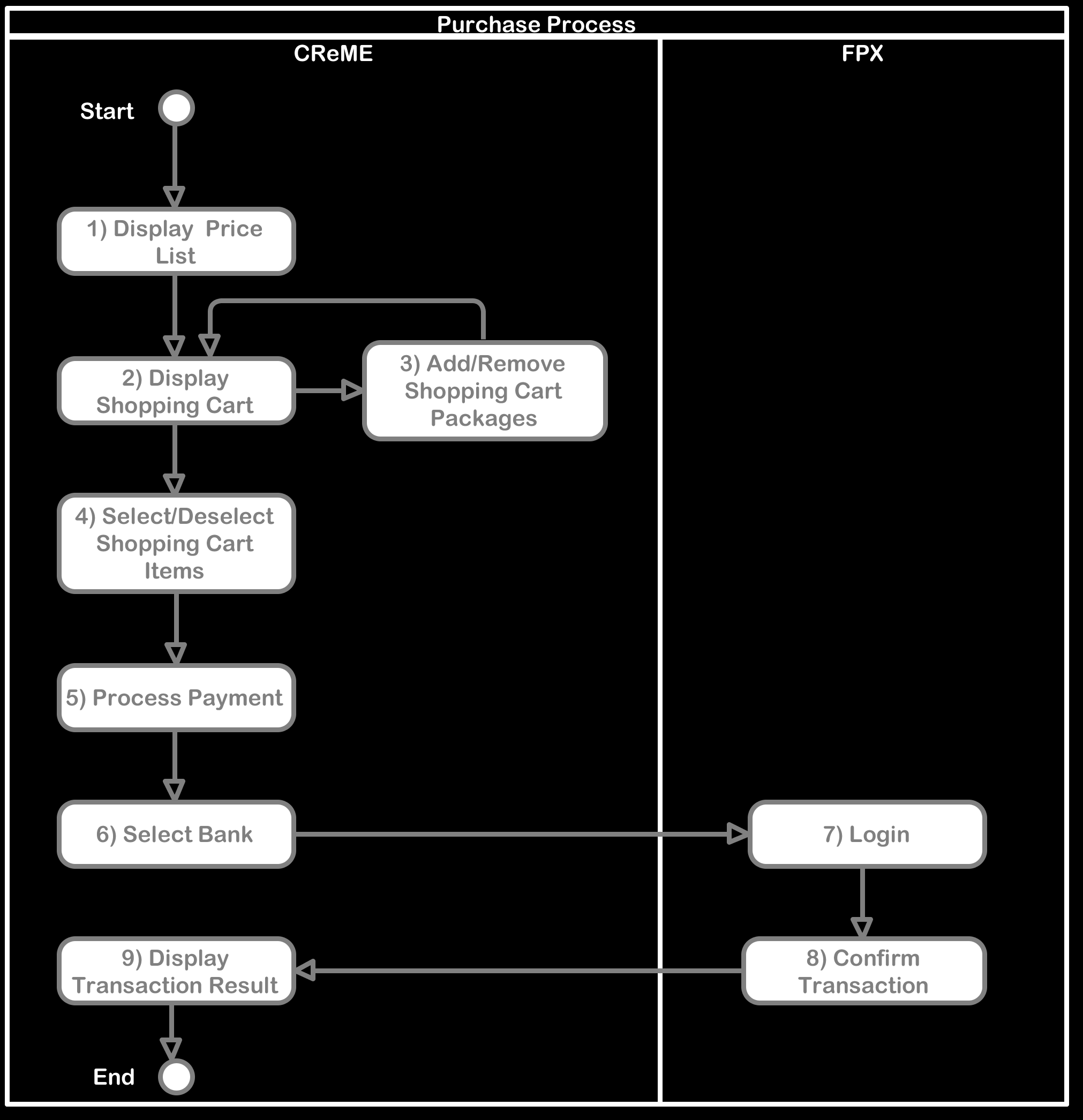
before this. An overview of this process is illustrated in the diagram
below. The user is also assumed to be familiar with
CAPI - Introduction.
1) Display Price List
To display the Price List, the following request is submitted:
Body: ChannelKey:CEV75FGS6TA2VMYHF6G9MKV7;SessionKey:T8T7YV5JXTCC7MLA84QTHQDU;eMailAddress:member1@bizt.my;PackageTitle:A
init;TargetMarket:Current Clubs (there is no ";" at the end of the
request)
Response:
{
"Code": "84.50.0",
"Description": "Package successfully assigned to Person",
"Payload": "1637910"
}
The function returns a Status object with the
PersonPackageHistoryId of the newly added Package in the
Payload.
Calling the "ShoppingCart/Read" function shows the
ShoppingCart with the newly added Package:
Response after calling the ShoppingCart/Read function again:
[
{
"Selected": true,
"Id": 1637498,
"PackageTitle": "Promo RM180 int",
"PriceByCash": 243.8,
"PriceByCreditCard": 243.8,
"PriceByDirectDebit": 243.8,
"PriceByCHIPS": 243.8,
"PriceByCheque": 243.8,
"PriceByFundsTransfer": 243.8
},
{
"Selected": null,
"Id": 1637501,
"PackageTitle": "PT 10",
"PriceByCash": 551.2,
"PriceByCreditCard": 530,
"PriceByDirectDebit": 530,
"PriceByCHIPS": 530,
"PriceByCheque": 561.8,
"PriceByFundsTransfer": 540.6
},
{
"Selected": null,
"Id": 1637910,
"PackageTitle": "A init",
"PriceByCash": 253.05,
"PriceByCreditCard": 253.05,
"PriceByDirectDebit": 253.05,
"PriceByCHIPS": 253.05,
"PriceByCheque": 253.05,
"PriceByFundsTransfer": 253.05
}
]
3b) Deleting Packages from the Shopping Cart
To delete Packages from the Shopping Cart, the following request is
submitted:
Body: ChannelKey:CEV75FGS6TA2VMYHF6G9MKV7;SessionKey:T8T7YV5JXTCC7MLA84QTHQDU;PersonPackageHistoryId:1637910
(there is no ";" at the end of the request)
Response:
{
"Code": "84.200.0",
"Description": "Item successfully removed in PersonPackageHistory",
"Payload": "1637910"
}
Calling the "ShoppingCart/Read" function shows the
ShoppingCart minus the Package.
4) Selecting/Deselecting Shopping Cart Items
To perform selection/deselection of ShoppingCart items, the
following function is called:
ChannelKey:CEV75FGS6TA2VMYHF6G9MKV7;SessionKey:T8T7YV5JXTCC7MLA84QTHQDU;SelectionMode:Select
on click;PersonPackageHistoryId:1637498 (there is no ";" at the end of
the request)
The Selection Modeparameter can take on either of the following
values:
SelectionMode:Select on click;
SelectionMode:Deselect on click
For an explanation of these parameters, please refer to
CReME - Purchase
5) Process Payment
At the Checkout page, the value of selected items is shown below the
ShoppingCart. To obtain the value of all selected items in the
ShoppingCart, the following function is called:
ChannelKey:CEV75FGS6TA2VMYHF6G9MKV7;SessionKey:T8T7YV5JXTCC7MLA84QTHQDU;eMailAddress:member1@bizt.my;PayByCreditCard:False;PayByDirectDebit:True;PayByCHIPS:False;ActivationOn:20/8/2020
(there is no ";" at the end of the request)
Response:
{
"Code": "",
"Description": "Value of shopping cart items successfully calculated",
"Payload": "243.80"
}
The value of the selected items appears in the Payload of the
returned Status object.
The values for PayByCreditCard, PayByDirectDebit and PayByCHIPS can only
be "True" or "False". Also, they are case-sensitive which means "True" is
acceptable but "true" is not. The following table provides the recommended
values:
Input Values
Payment Method
PayByCreditCard
PayByDirectDebit
PayByCHIPS
1) PayByCreditCard
True
False
False
2) PayByDirectDebit
False
True
False
3) PayByCHIPS
False
False
True
For the time being only option 2 has been enabled. Option 1 and 3 are not
yet enabled.
ActivationOn is specified as d/M/yyyy. It is usually the
current date. One way to make things easier for the user would be to fix
this as always the current date.
Warning! Changing the ActivationOn will change the value of
v1/ShoppingCart/Value so be sure to call this function to obtain the
correct value.
When the user is ready, the payment process is initiated by calling the
following function:
ChannelKey:CEV75FGS6TA2VMYHF6G9MKV7;SessionKey:T8T7YV5JXTCC7MLA84QTHQDU;eMailAddress:member1@bizt.my;CreditCardAmount:0;DirectDebitAmount:243.80;CHIPSamount:0;ActivationOn:20/8/2020
(there is no ";" at the end of the request)
Response:
{
"Code": "",
"Description": "Payment is being processed",
"Payload": "1637932"
}
Note that the pattern for CreditCardAmount, DirectDebitAmount and
CHIPSamount must follow the pattern for PayByCreditCard, PayByDirectDebit
and PayByCHIPS in ShoppingCart/SelectedItems/Value. SInce the pattern for
PayByCreditCard, PayByDirectDebit and PayByCHIPS was False-True-False,
therefore the pattern for CreditCardAmount, DirectDebitAmount and
CHIPSamount must follow (zero-nonZero-zero).
The value for PayByDirectDebit must be equal to or greater than the value
in ShoppingCart/SelectedItems/Value. It cannot be less.
The value returned in Payload is the
PaymentRequestId of the Payment that has just been
created.
The ShoppingCart has been emptied of all selected Packages.
Packages that were not selected remain. This can be seen by running
ShoppingCart/Read.
6) Select Bank
The status of the Payment is currently "unconfirmed" and is
ready to be sent to the bank for confirmation.
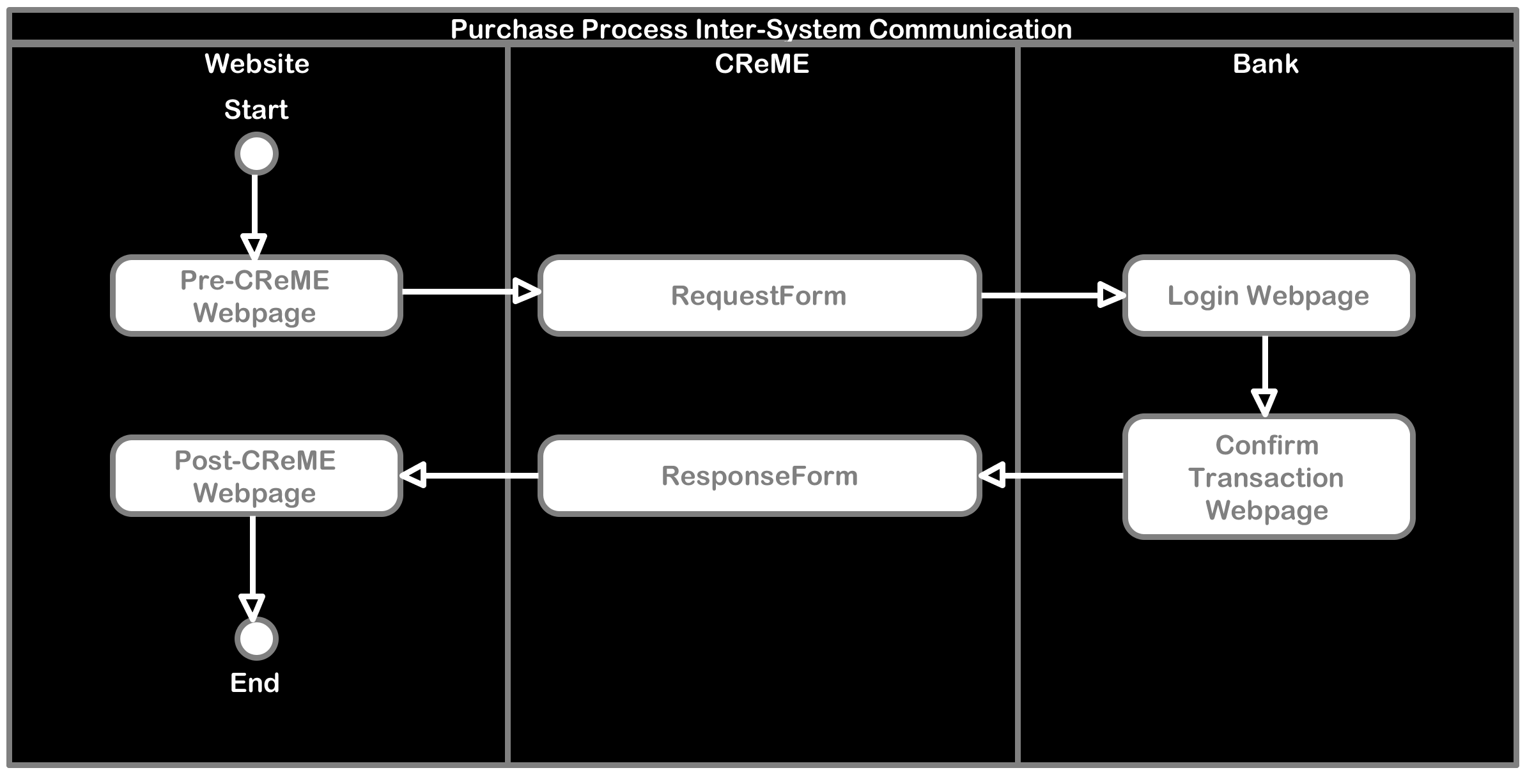
So far, all the processing has been carried out on the "Pre-CReME Webpage"
as shown in the diagram below.
Now, the Pre-CReME Webpage will call the RequestForm in CReME
to select the Bank that will process this payment request.
obtained by calling v1/Payment/Read/PaymentRequestId.
Each PaymentRequestId will have one unique and permanent
PaymentRandomKey.
ShowRequestForm
0=do not show, 1=show
If ShowRequestForm=0, the RequestForm will not appear. Instead, the
user sees Pre-CReME Webpage followed by FPX Login page. If this option
is chosen, the Bank Code must be defined at the Pre-CReME webpage.
If ShowRequestForm=1, the RequestForm will appear, allowing the user
to select the BankCode. The Pre-CReME Webpage need not define the
BankCode. For more information on how to obtain the list of Bank
Codes, please refer to the Curlec documentation.
ShowResponseForm
0=do not show, 1=show
If ShowResponseForm=1, the ResponseForm
(https://office.creme.my/curlec/CurlecCallbackInstantPay.aspx) appears
after the FPX Confirmation Webpage. If this option is chosen, the
PostCReMEurl value can be empty. If ShowResponseForm=0, the user
sees the Post-CReME Webpage immediately after the FPX Confirmation
Webpage. If this option is chosen, the PostCReMEurl must be defined.
BankCode
Selected from list of bank codes and bank names
For more information on how to obtain the list of Bank Codes, please
refer to the Curlec documentation.
PostCReMEurl
defined by Website developer
The Webpage displayed by the Website after the Payment Process is
completed for example, "https://www.abc.com/somepage.html". CReME will
append 3 parameters to this: PaymentRandomKey, StatusCode and
StatusDescription so the full url looks like
https://www.abc.com/somepage.html?PaymentRandomKey=DK4F4HM9YKFZZFVU89S83K5E&StatusCode=00&StatusDescription=SomeDescription
If ShowResponseForm=0, this page will appear. If
ShowResponseForm=1, this page will not be called.
7) Login and 8) Confirm Transaction
These are pages from the online banking system.
9) Display Transaction Result
The transaction result can be displayed in either of two ways:
using CReME ResponseForm
using PostCReMEurl
If method A is required, simply ensure ShowResponseForm=1.
If method B is required, ShowResponseForm=0 and PostCReMEurl=[] where []
leads to a valid webpage that is able to process the paramaters mentioned
in the table above.
If the information provided by the 3 parameters is insufficient and the
developer would like to display more transaction information, this can be
obtained by calling the following function: