This document describes how to purchase a package within CReME™
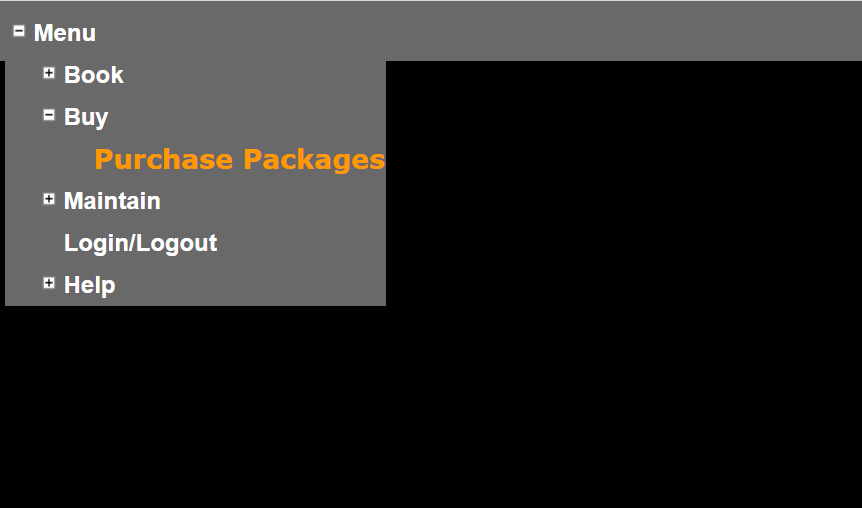
Click on Purchase Packages
After successfully logging in to CReME™, click on "Purchase Packages" to access the Price List page.
Price List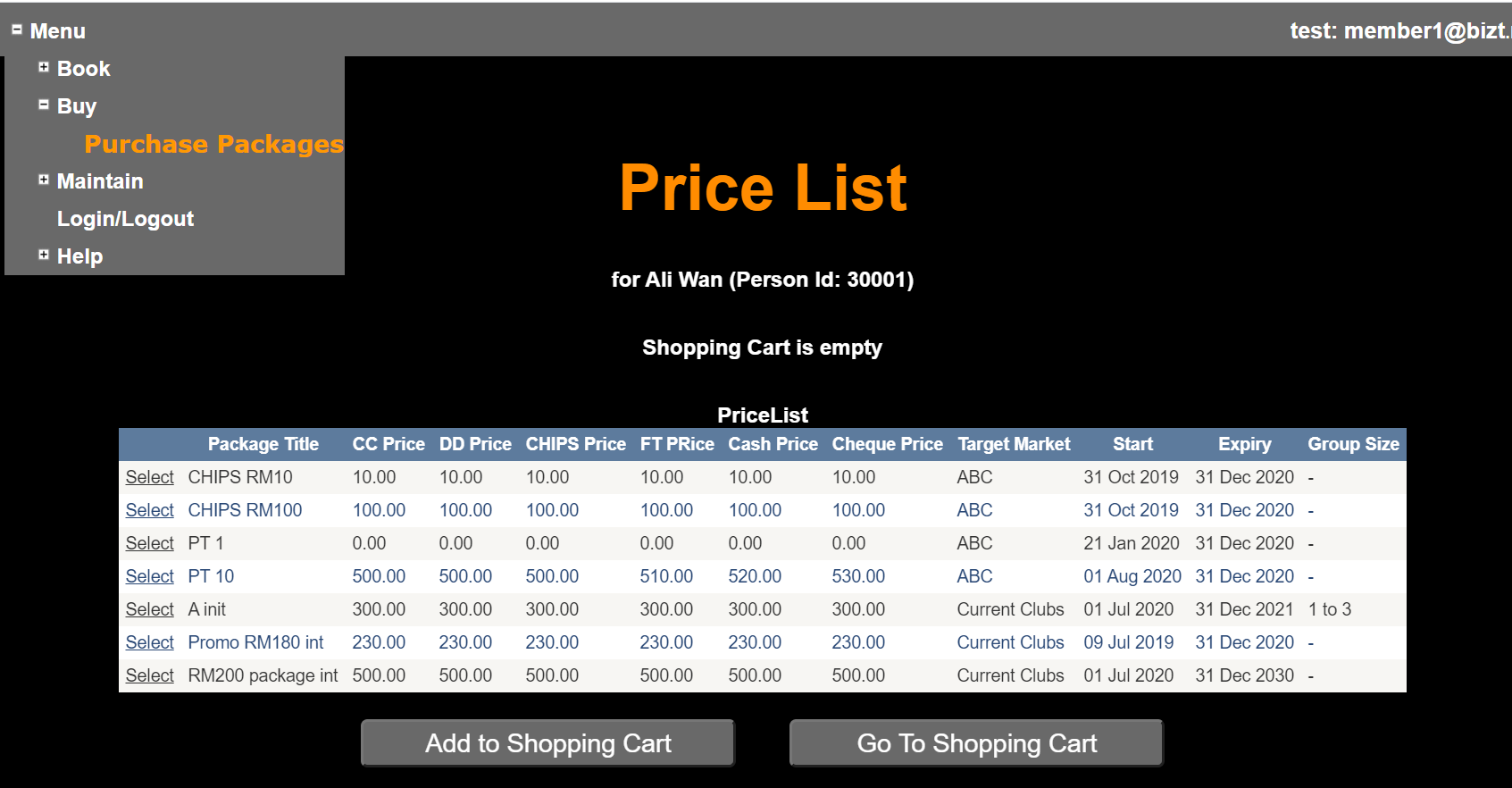
This page contains two tables:
The Shopping Cart is currently empty because no items have been selected yet. The Price List contains the list of Packages available for purchase.
Adding Items to Shopping CartLet's assume this user wants to purchase two packages:
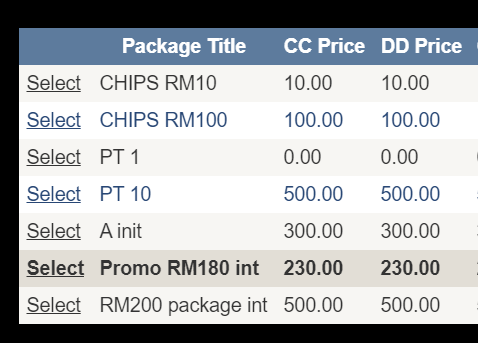
The steps to do this are:
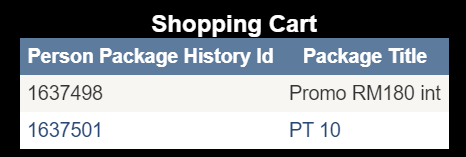
After completing these steps, the Shopping Cart is populated with the two items mentioned above.
CheckoutClicking on "Go to Checkout" brings the user to the Checkout page.
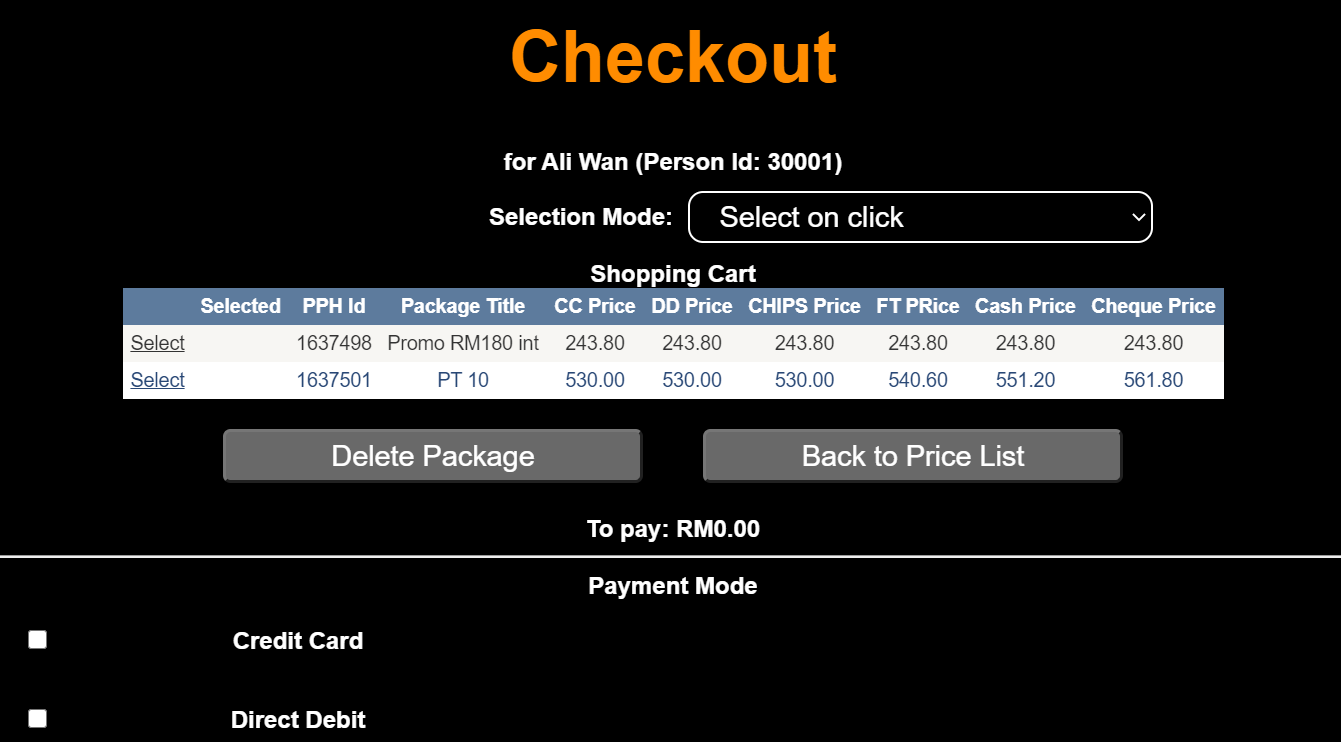
Ths Shopping Cart is shown here with the same two items we saw previously. Here it is shown together with the prices for each Payment Method. Below the Shopping Cart, the "To Pay" value is currently zero. This is because none of the Shopping Cart items have been selected for Checkout.
The Selection Mode drop down list offers 2 options:
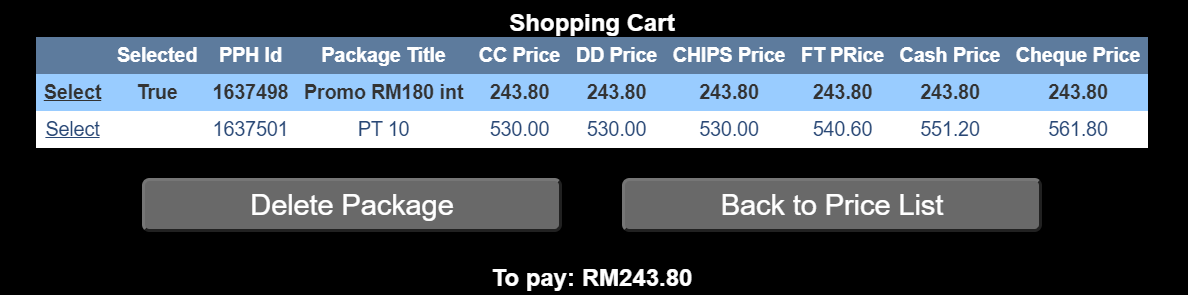
Let's assume that after placing two items in the Shopping Cart, the user decides to purchase only the first item. After he/she selects that item, the "To Pay" value is updated to reflect the value of selected items in the Shopping Cart.
Scrolling down, the user selects Payment Method.
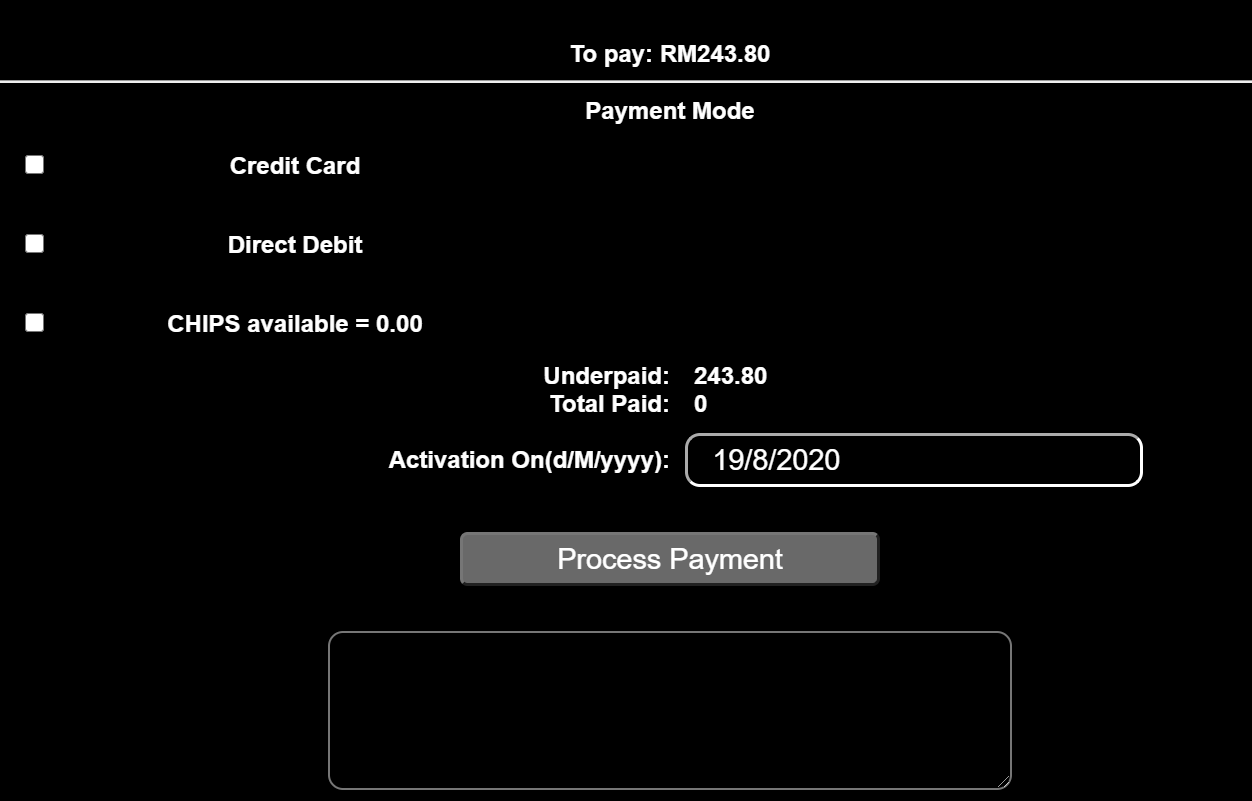
The user has the choice of paying via 3 methods:
Payment via Credit Card and Direct Debit are self-explanatory. Payment via CHIPs is when the user has some pre-paid value in his/her account.
The user selects to pay using Direct Debit. The amount is automatically entered by CReME.
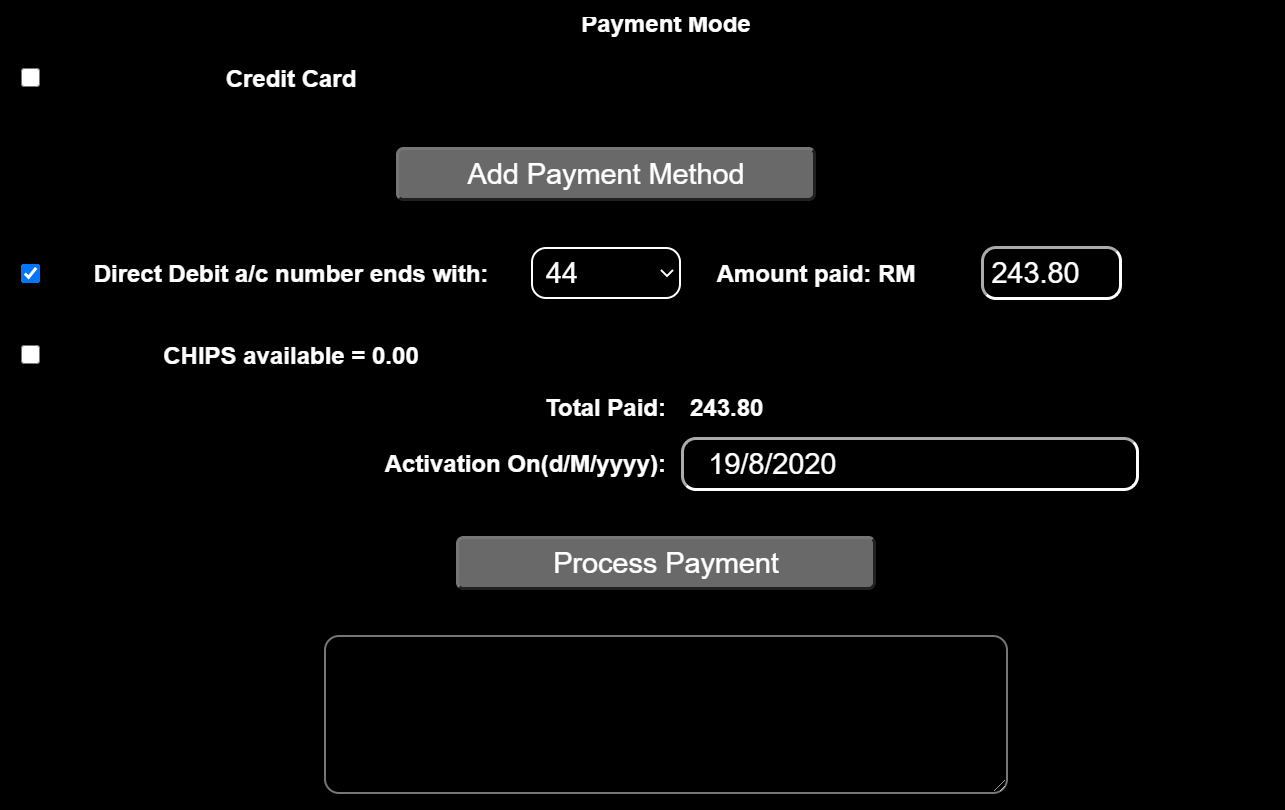
The user ensures "Direct Debit A/C ending with" has a number next to it. If not, clicking on "Add Payment Method" is used to input a Credit Card Number or Direct Debit Account number. For security purposes, it is not necessary to input the full number. The last few digits will do.
The user changes the Activation Date if he/she would like to post-date the activation of this Package.
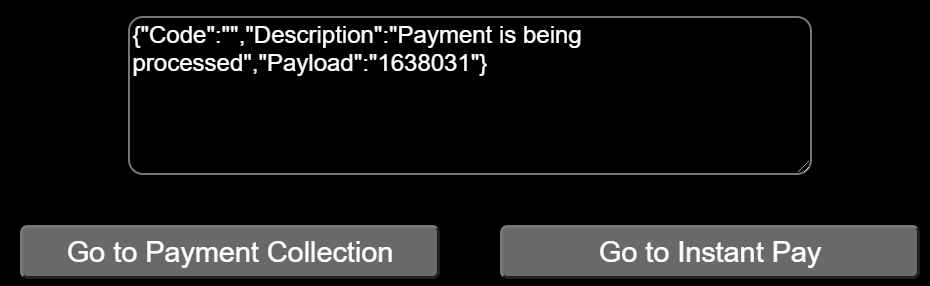
After clicking "Process Payment", StatusDescription is displayed as "Payment is being processed". Two buttons appear below the Status Text Area.
"Go To Payment Collection" is used by office staff.
Click on "Go to Instant Pay"
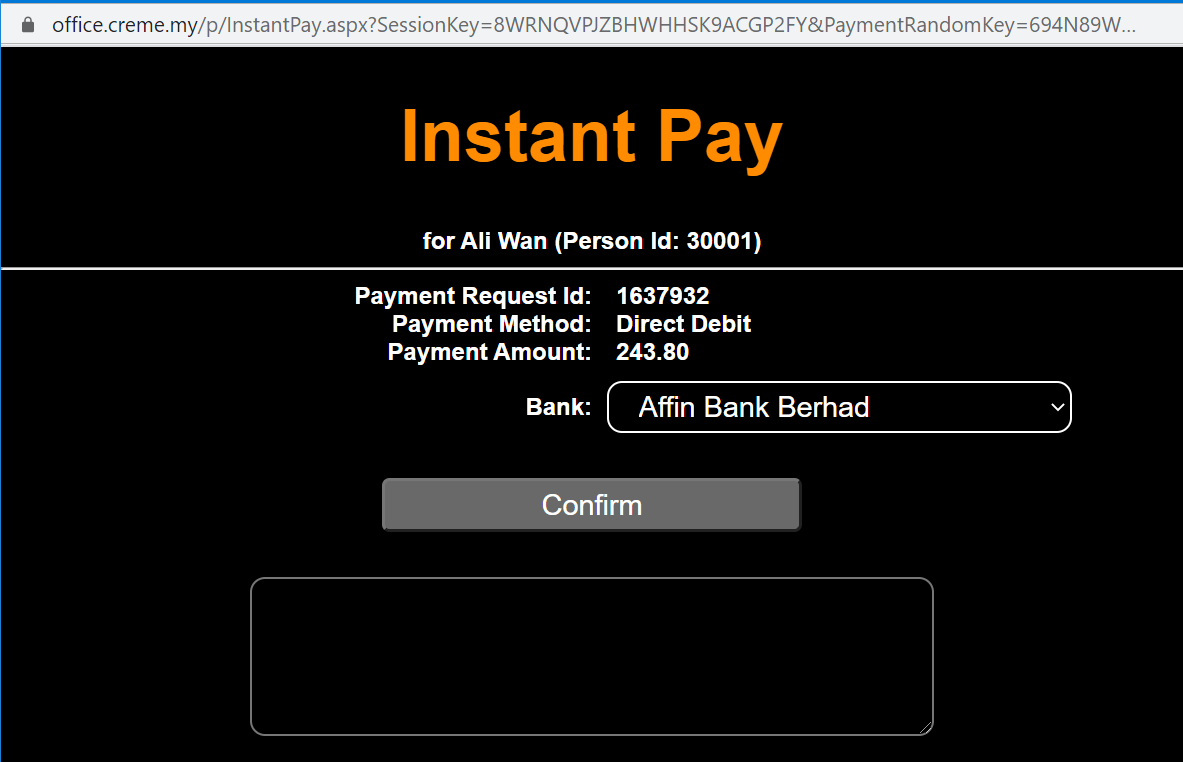
The RequestForm (InstantPay.aspx) pops up.
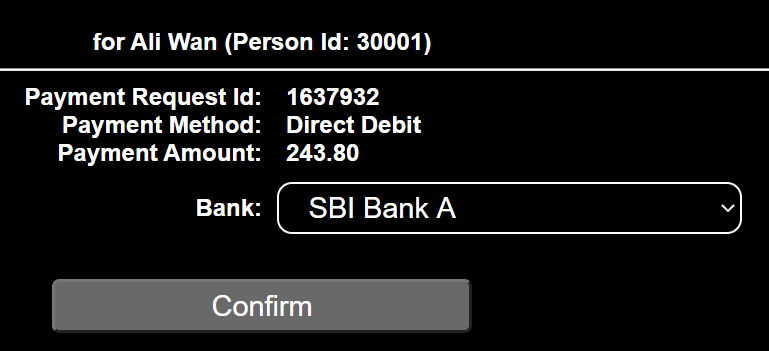
The user selects the Bank where his/her Direct Debit account is maintained. Clicking on "Confirm" brings the user to the FPX Login page.
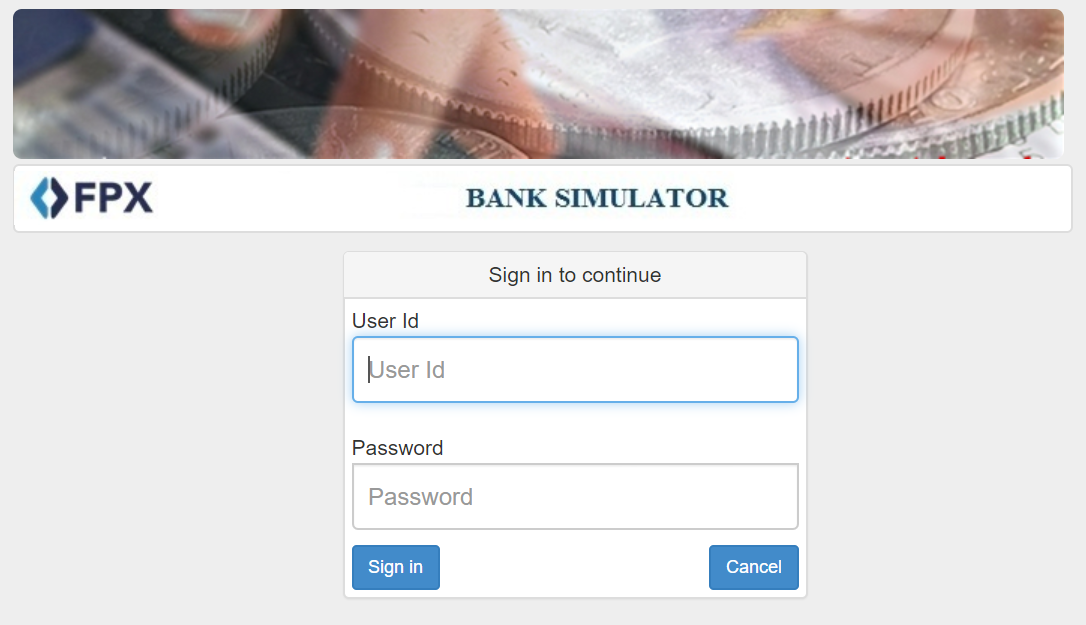
The user inputs his/her user Id and password as he would his at his/her online banking webpage. This brings the user to confirm the transaction.
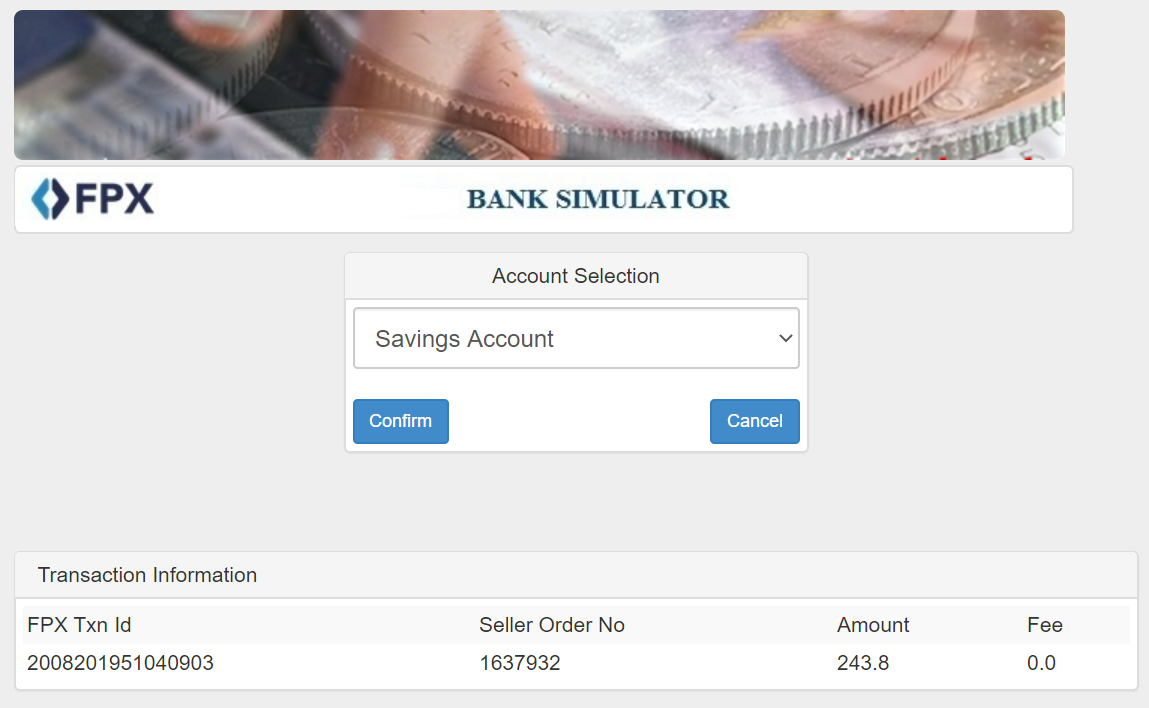
The next page allows the user to exit the online banking application and return to CReME.
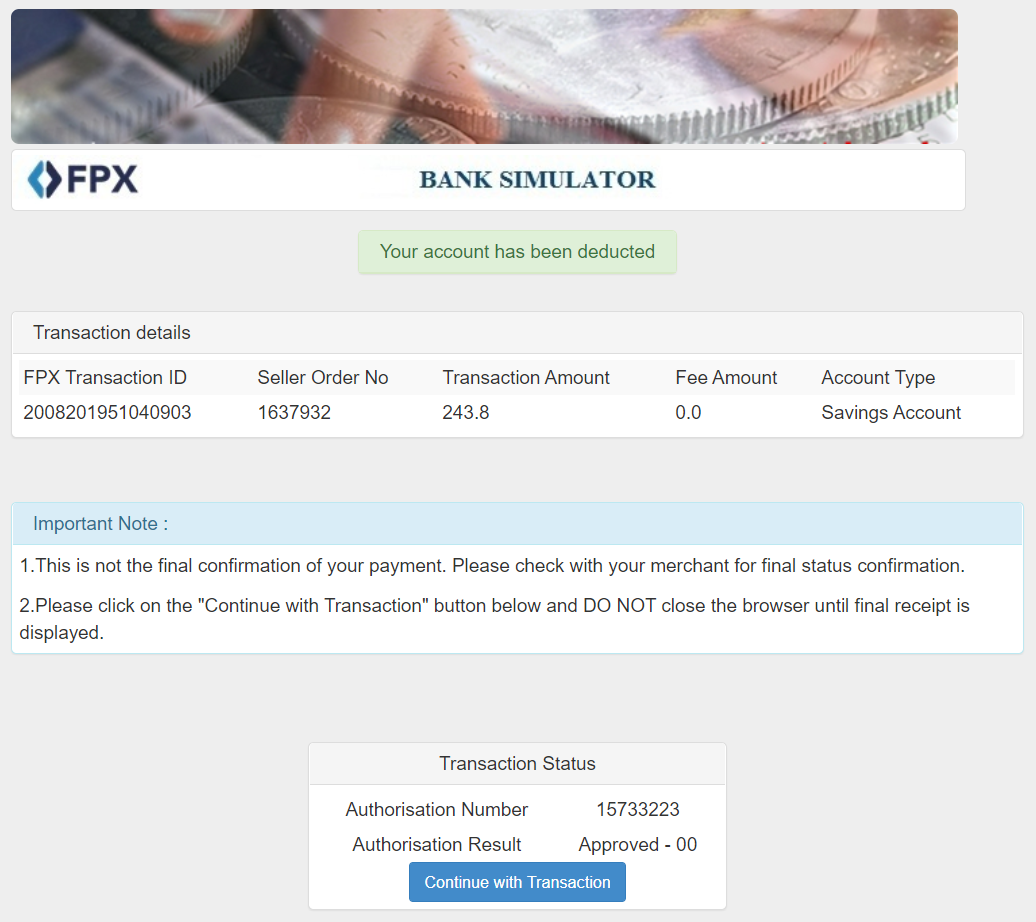
Clicking on "Continue with Transaction" brings the user back to CReME.
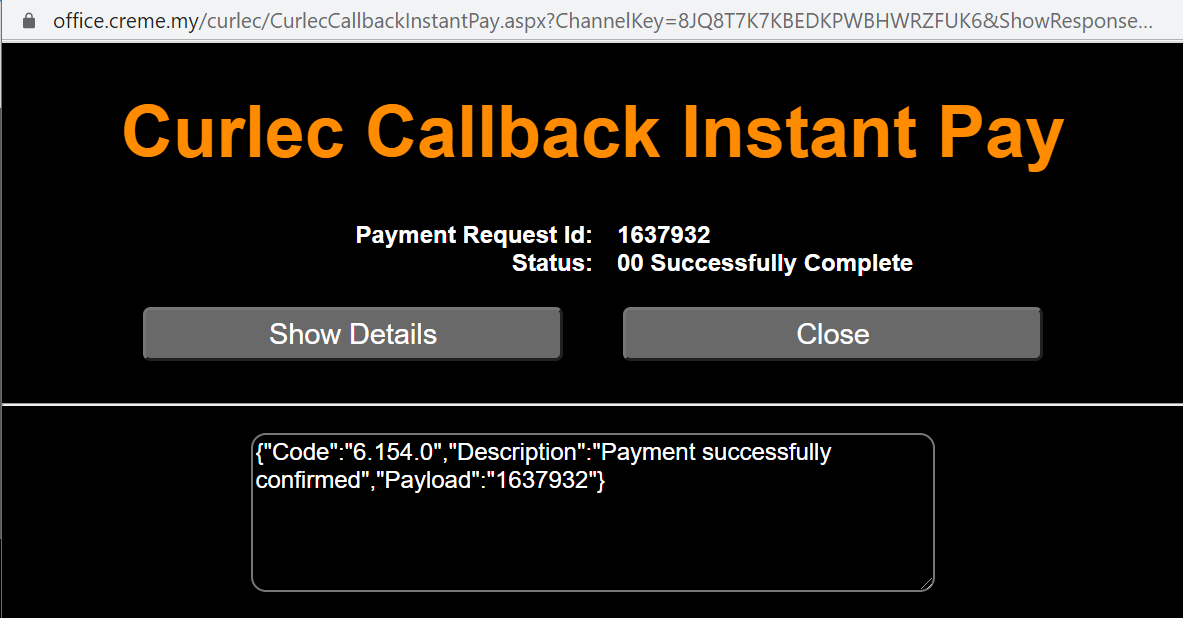
within a few minutes, the user receives a receipt from CReME.