
This document describes how the Inventory Audit process is managed within CReME™.
A) Audit CategoriesDuring the audit, each unit of inventory is scanned and classified into the categories shown below.
"Scope of Audit" is the group of chassis numbers that CReME™ has targeted for the audit.
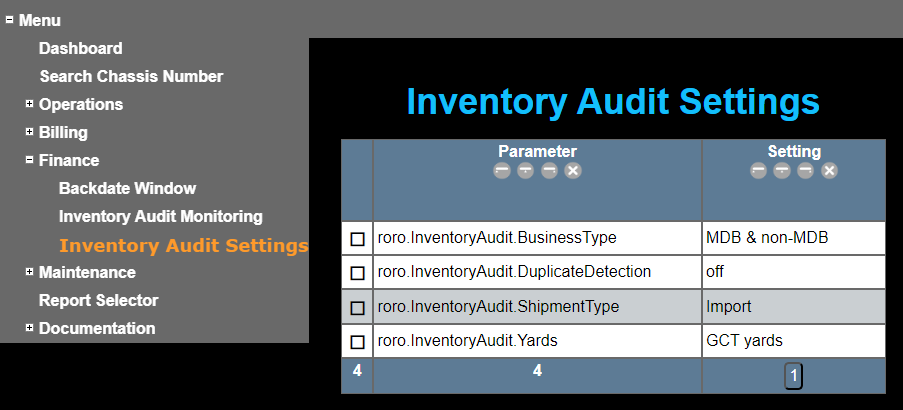
"Scope of Audit" is the group of units that meet the all following criteria:
Units that are outside the Scope of Audit can be scanned.
"Unscanned" is the group of units that have not yet been scanned in this audit session. When the audit session is first created, "Unscanned" = "Scope of Audit"
Scanned"Scanned" is the group of units that have been scanned. This group can be divided into:
These sub-groups are shown in colour according to the status of the scan. Green=information is correct and no further action required. Yellow=some information is incorrect but is considered a minor error. Red indicates a major error.
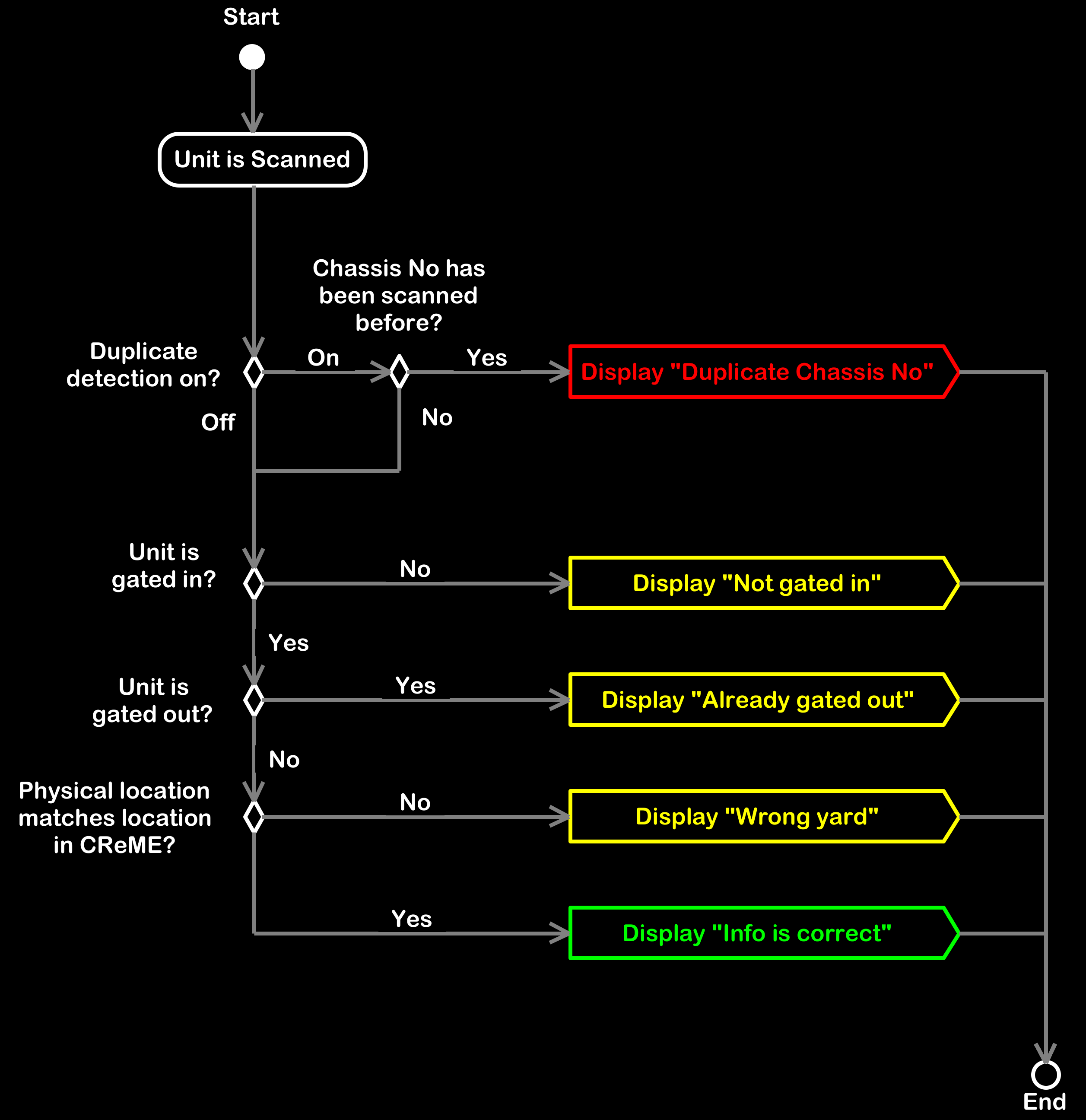
When a unit is scanned, the result displayed depends on whether Duplicate Detection is tuned On or Off. If Duplicate Detection is On and the Chassis No has been scanned before, "Duplicate Chassis No" will be displayed in red.
If Duplicate Detection is On and the Chassis No has not been scanned before, the unit is then checked for Gate In.
If Duplicate Detection is Off, the unit is checked for Gate In without checking for Duplicate Detection.
Duplicate Detection can be turned On or Off at the Inventory Audit Settings page.
Not gated inIf the unit is not gated in, the display shows this and the process ends here.
If the unit is gated in, the process continues to check for gate out.
Already gated outIf the unit is gated out, the display shows this and the process ends here.
If the unit is not yet gated out, the process continues to check for location.
Wrong yardIf the physical location matches the location information in CReME™, "Info is correct" is displayed.
If the physical information does not match the location information in CReME™, "Wrong yard" is displayed.
Info is correct"Info is correct" means the unit has passed all the tests described above
Not in CReME™If the unit is not in CReME™, it will be photographed and handled separately.
B) CalculationsAt the beginning of the audit, [Scope of Audit]=[Unscanned]
As each unit is scanned, [Unscanned] decreases by 1. [Scanned] increases by 1.
[Scope of Audit] = [Info is correct] + [Wrong yard] plus [some Duplicate Chassis No]. Not all Duplicate Chassis No can be included in [Scope of Audit] because some of these ChassisNos are under Not Gated In or Already Gated Out.
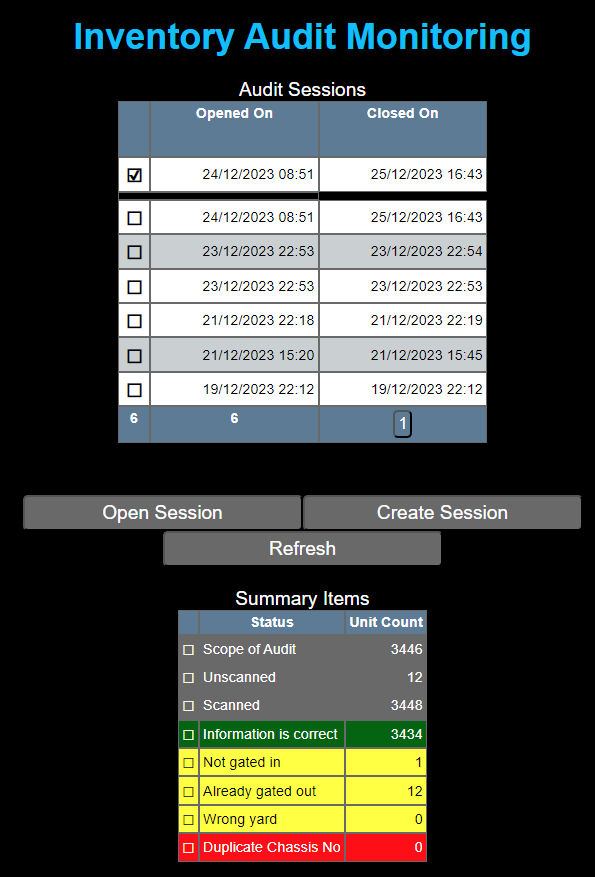
To perform an audit, click "Create Session".
WARNING: Opening a session causes operations to freeze - other users will not be able to perform gate in, gate out and other yard operations. Other operations such as invoicing are not affected. Upload of manifests are allowed but this could create confusion with the calculation of the Scope of Audit.
D) Duplicate DetectionDuplicate Detection should be switched on during the first phase of the audit. This will detect any ChassisNos that have been scanned twice. This could be caused by the same barcode paper being placed in two different units.
After the first phase of the audit is completed, most of the units will be under "Info is correct". There is a small number of units that will appear in the yellow or red categories. These will require follow-up action. Now is the time to switch off Duplicate Detection. After follow-up action is taken and the units are scanned again, they will fall under "Info is correct".
E) ReportThe Inventory Audit report can be found in the Report Selector. Each unit appears as one line item in the report. If the unit has been scanned multiple times, only the last scan is shown.

One of the columns in the report is titled "Auditor Type". Possible values for this are "internal", "external" and blank.
"external" denotes that record was scanned by a user who has the "TerminalInventoryAuditVehicle/Create" permission and is in the "External Auditor" group.
"internal" denotes that record was scanned by a user who has the "TerminalInventoryAuditVehicle/Create" permission and is not in the "External Auditor" group. He/she could be in any other group.
A blank indicates the unit has not been scanned yet.