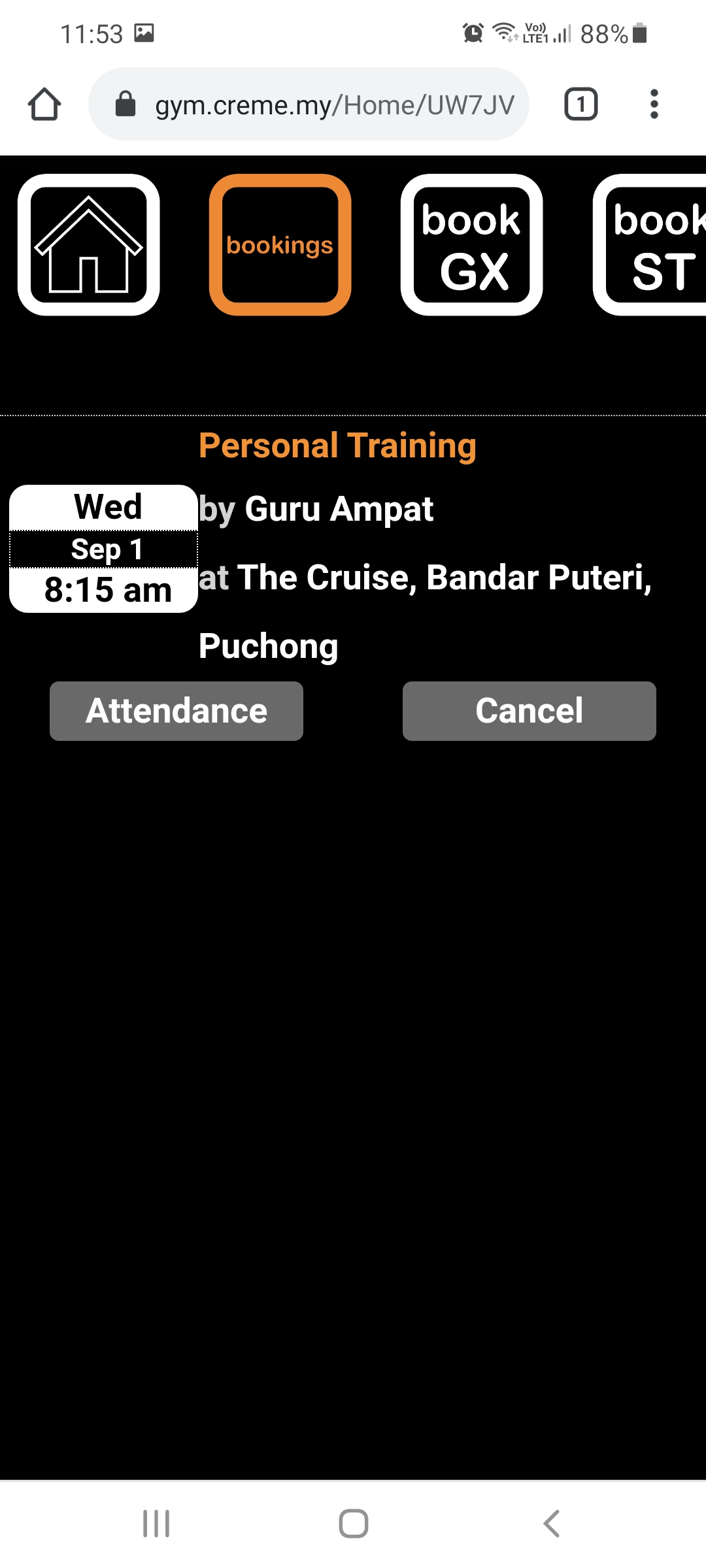
This document guides the user on how to book a PT2U session by using the CReME™ Mobile App. This application works best when used on a mobile phone. This document assumes the user is already familiar with how to login to the CReME™ Mobile App and has read the CReME™ Mobile Login document.
Home pageWithin the Home page, the user selects Book PT2U.
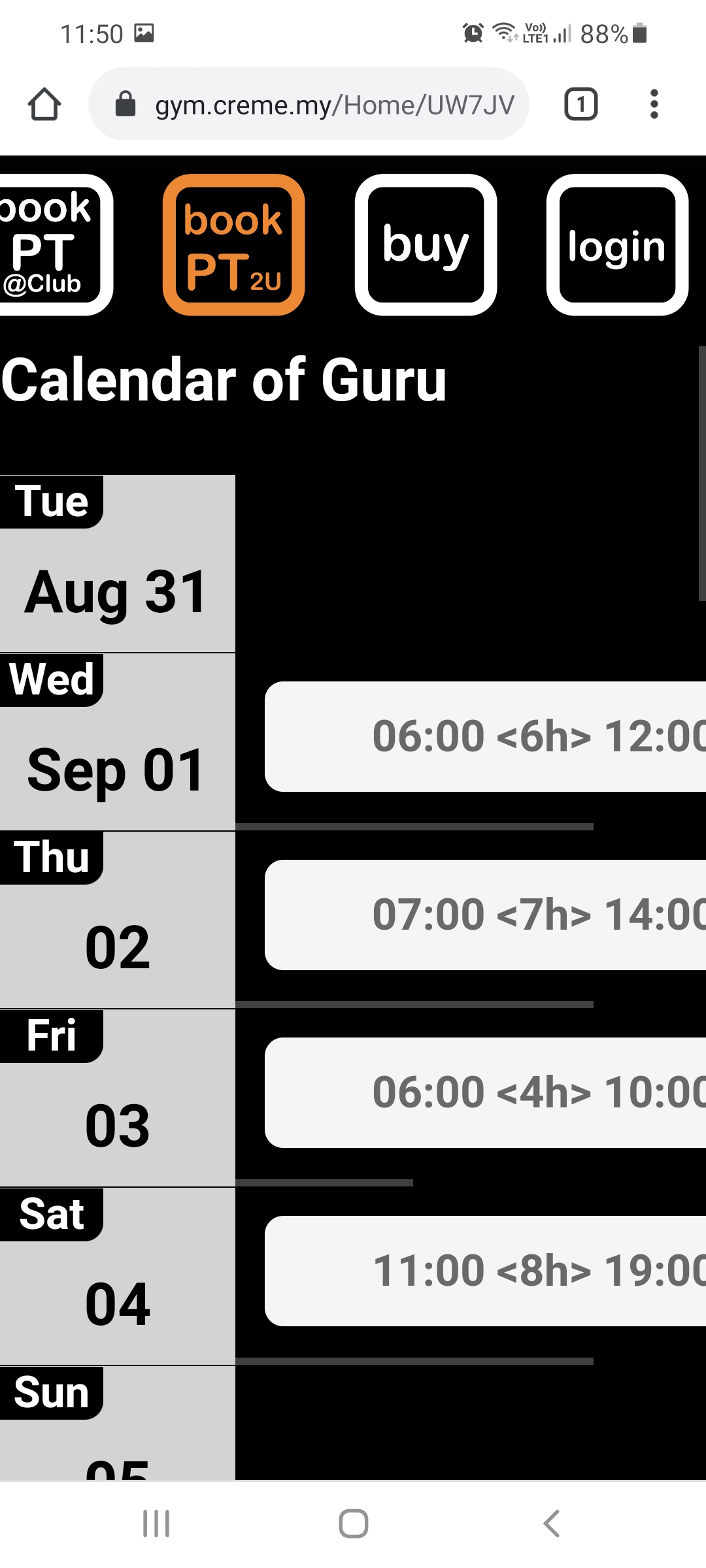
Selecting the "Book PT2U" option displays the trainer calendar with available gaps shown in white. A gap is a space within the trainer calendar that is available for booking.
On some days the trainer has more than one gap available. The user is able to see more gaps by scrolling the gaps within that particular day to the left.
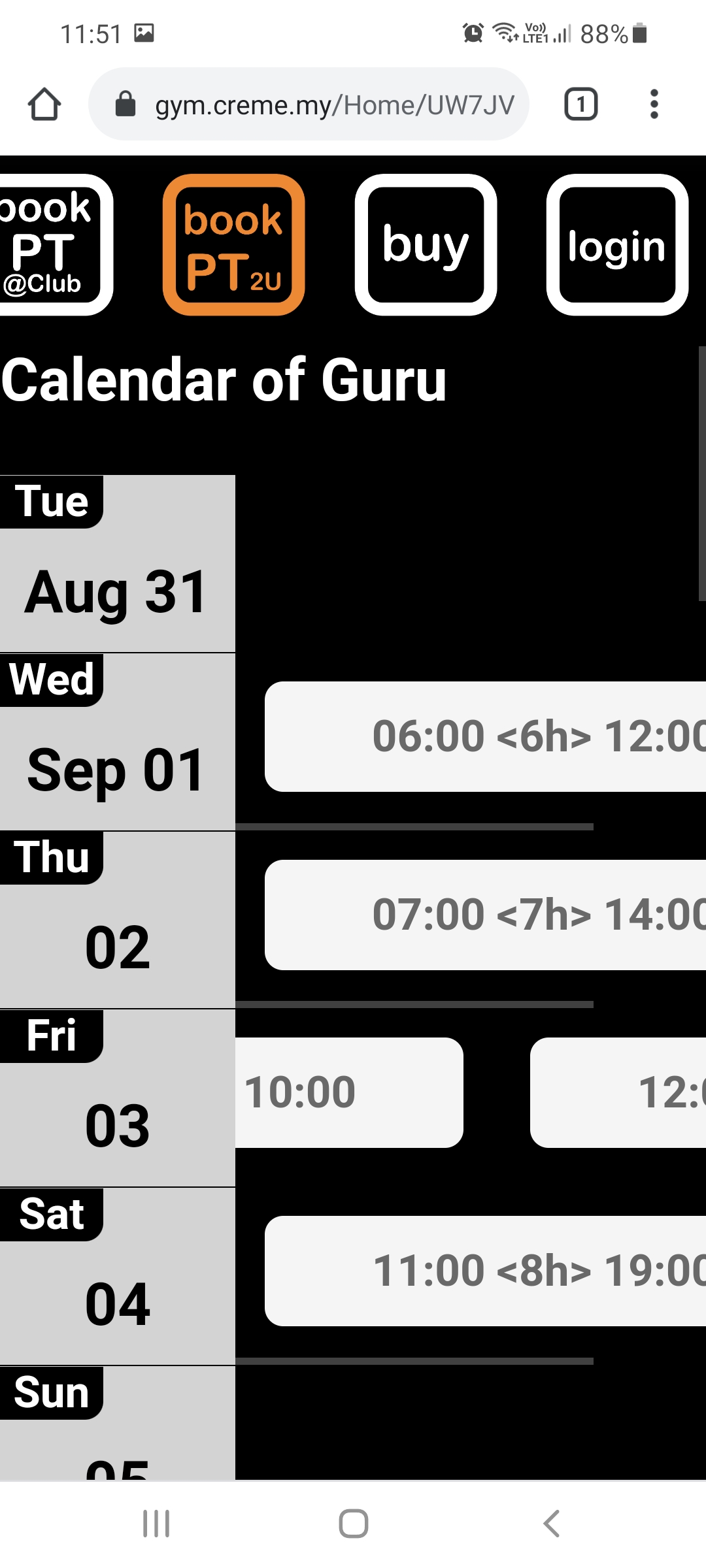
The above image shows multiple gaps are available for Friday, Sep 3.
The user selects a suitable gap to book a PT2U session. In this example, the user clicks on the 0600 to 1200 gap on Sep 1.
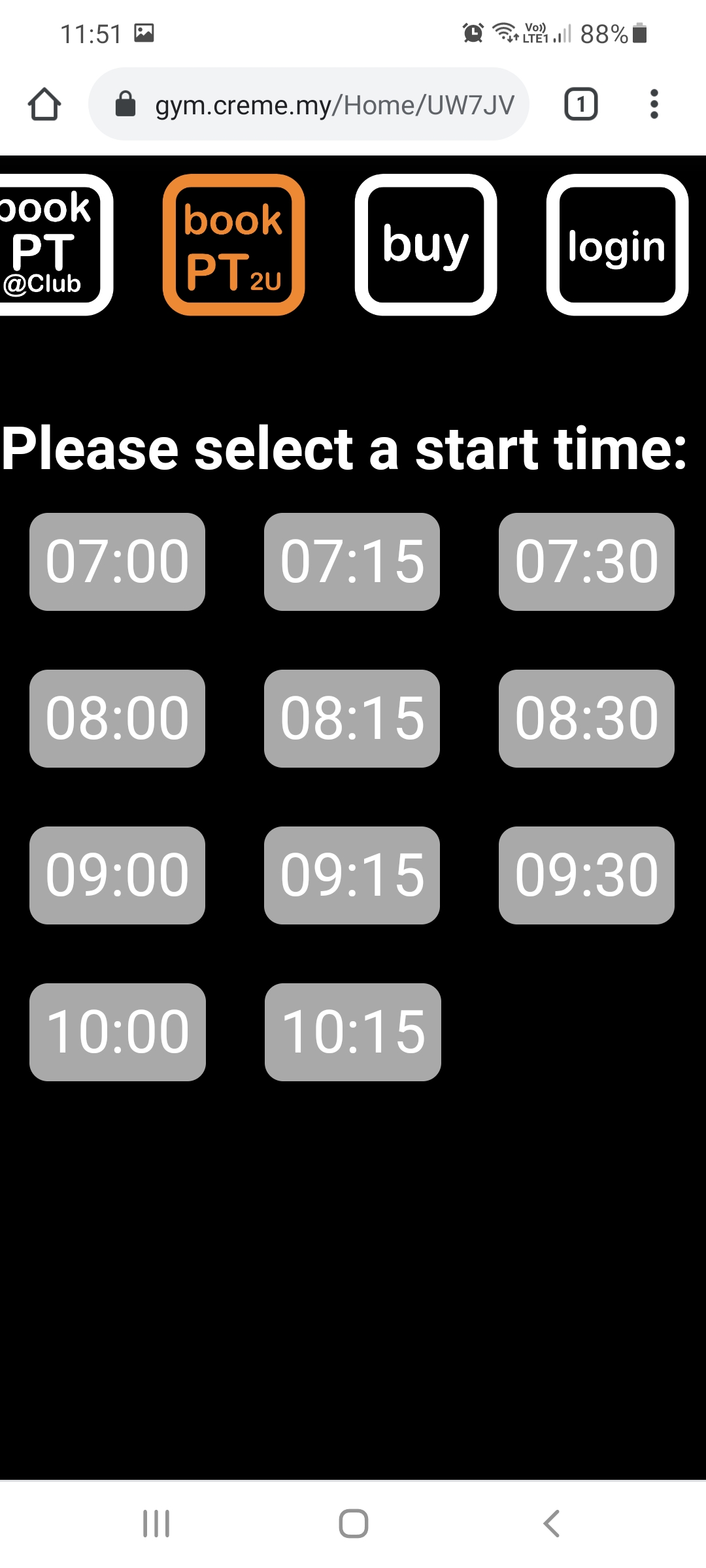
Selecting this gap gives the user a choice of start times. In this case, the user has the option of commencing his/her PT2U session at 0700, 0715, 0730 etc as shown above. After selecting a start time, the user is asked to confirm the selction.
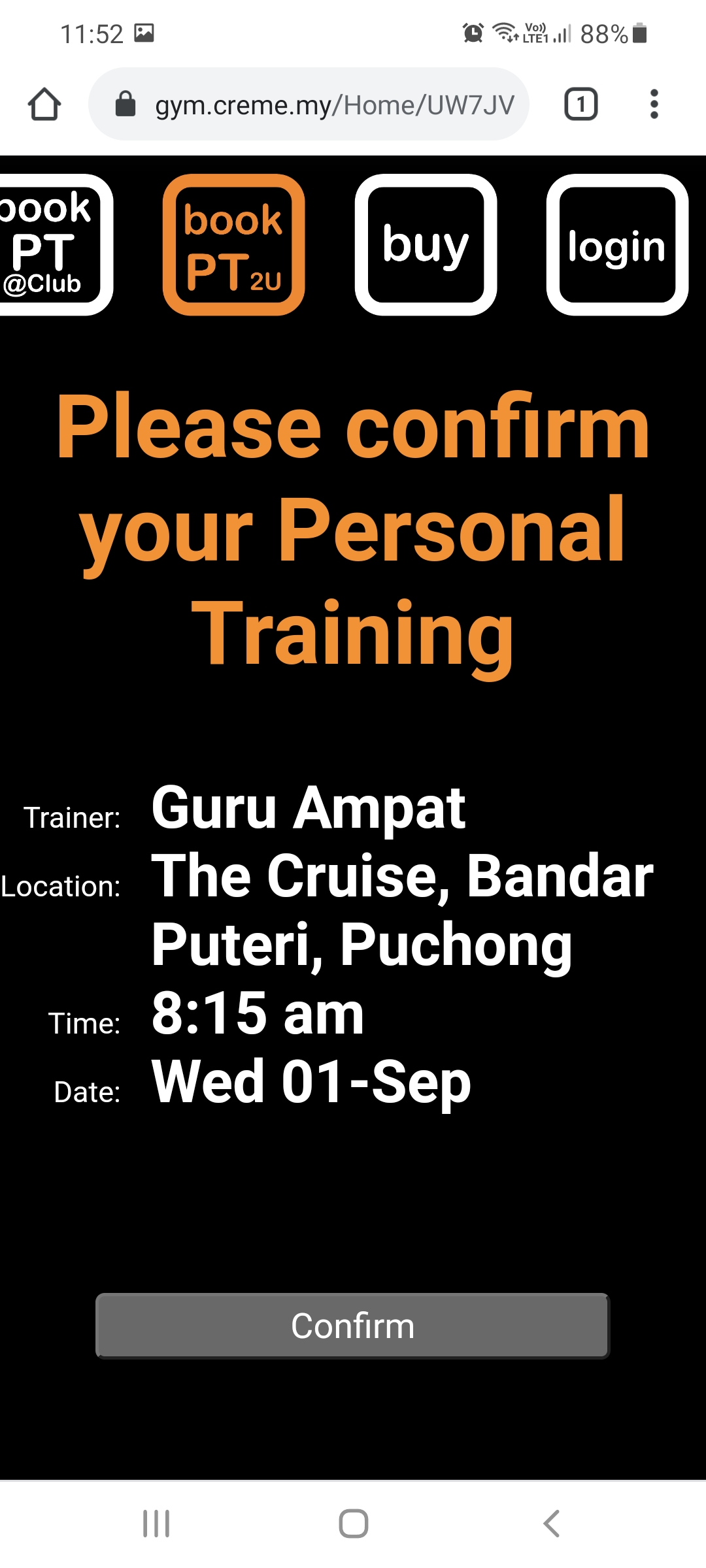
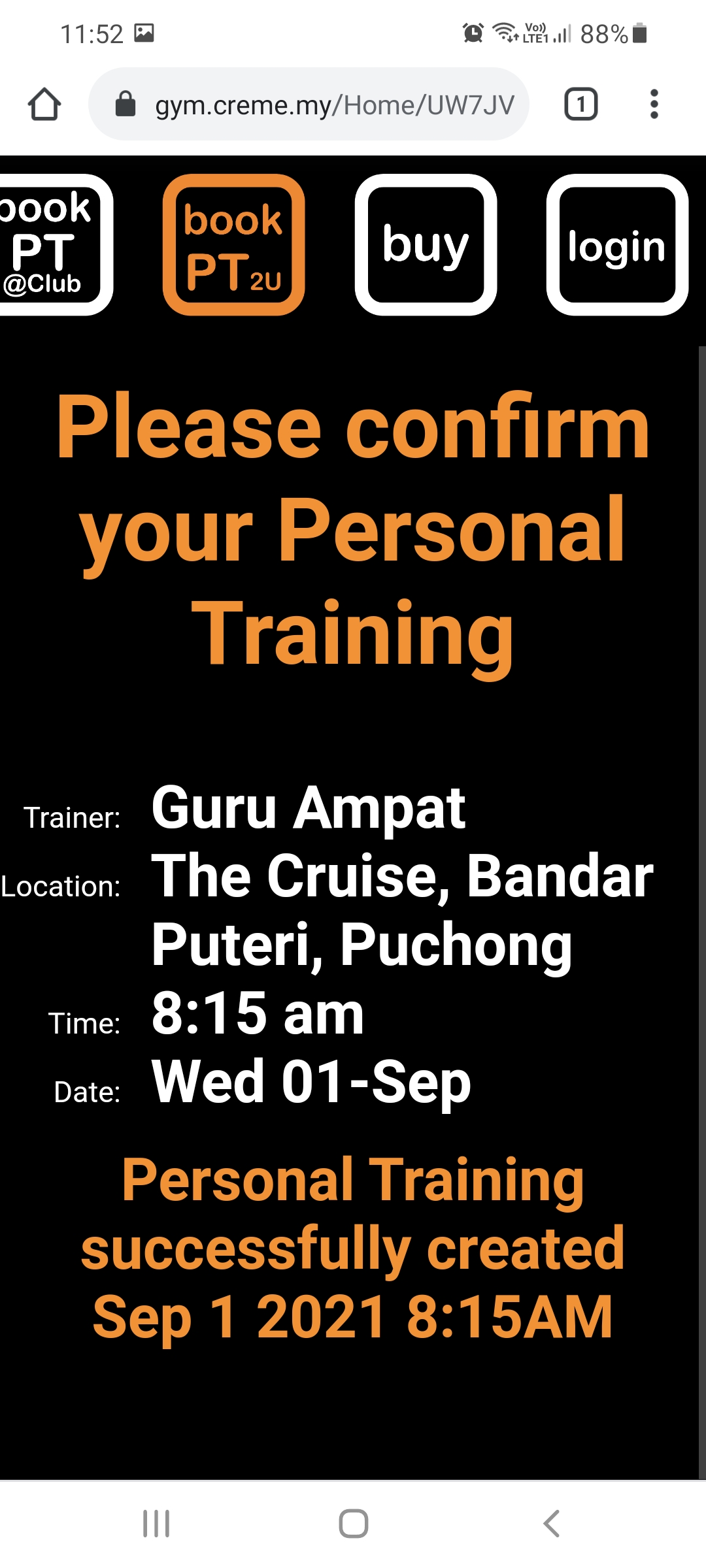
After confirmation, the status is displayed as created.
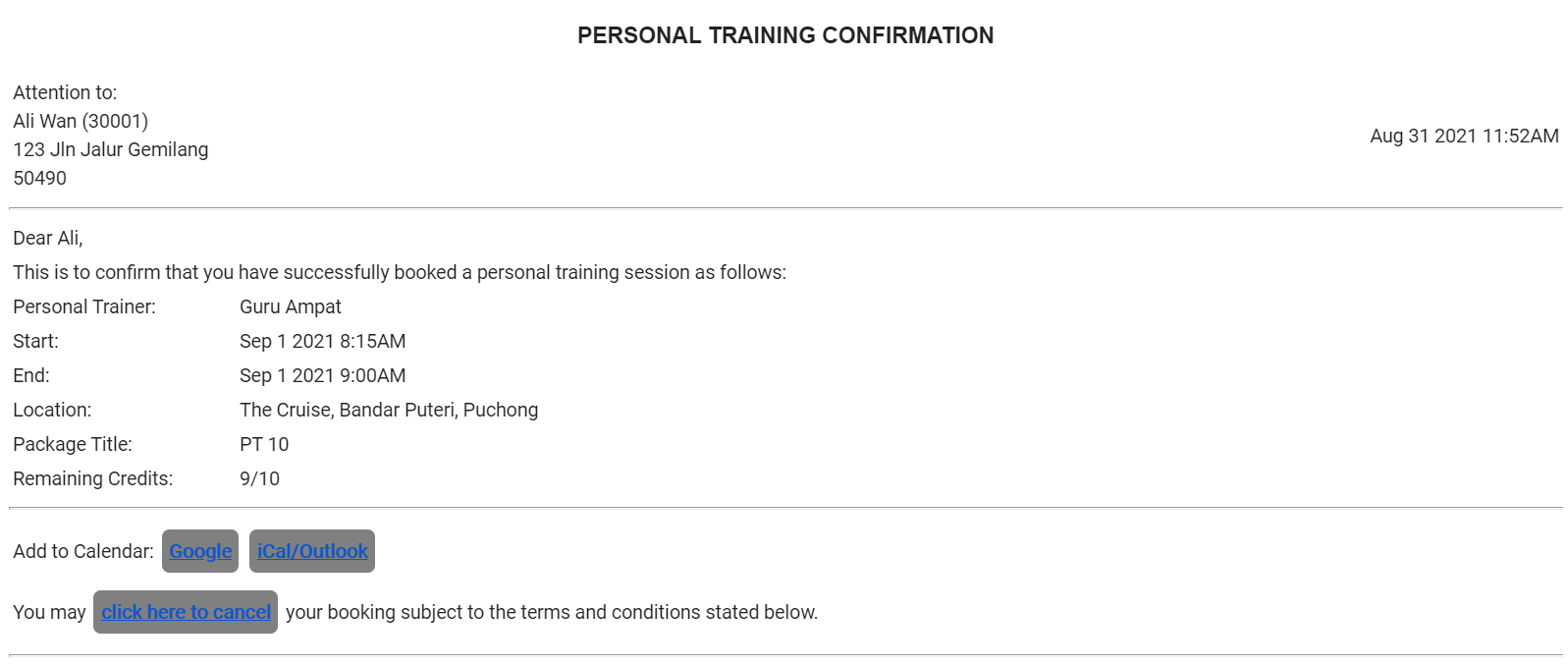
Within a few minutes, the user receives an email confirmation.
The booking appears in the "Bookings" page which can be accessed by selecting "Bookings" in the Home page.