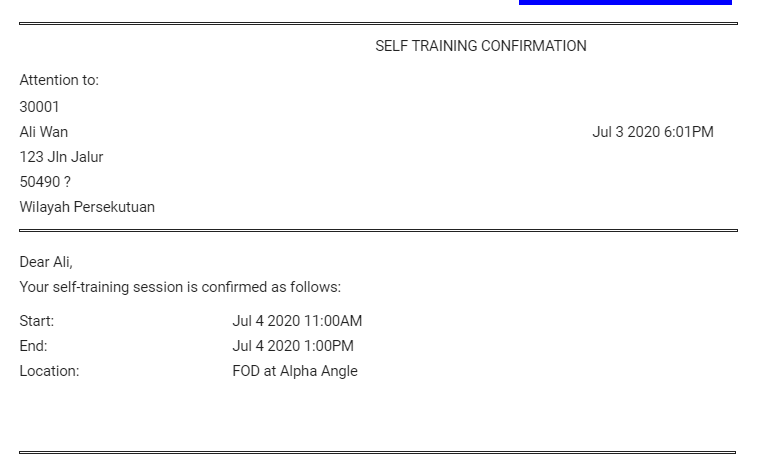
The purpose of this document is to guide Members on using CReME™ to make a reservation to use facilities without the supervision of a trainer.
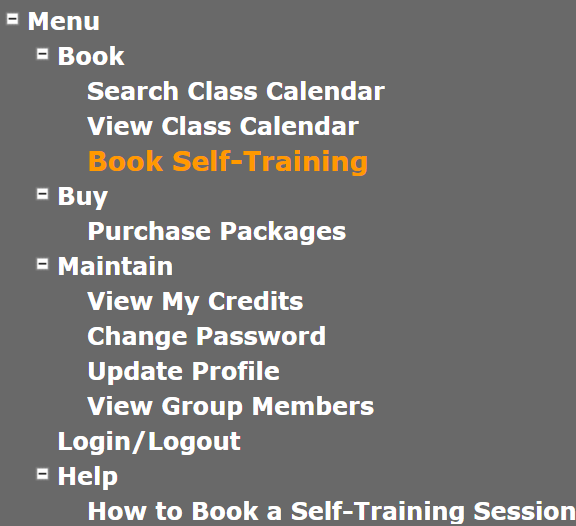
NavigationAfter the Member has logged in, he/she navigates to the Self-Training Booking page.
This leads the user to the Self-Training Booking page.
The Booking Page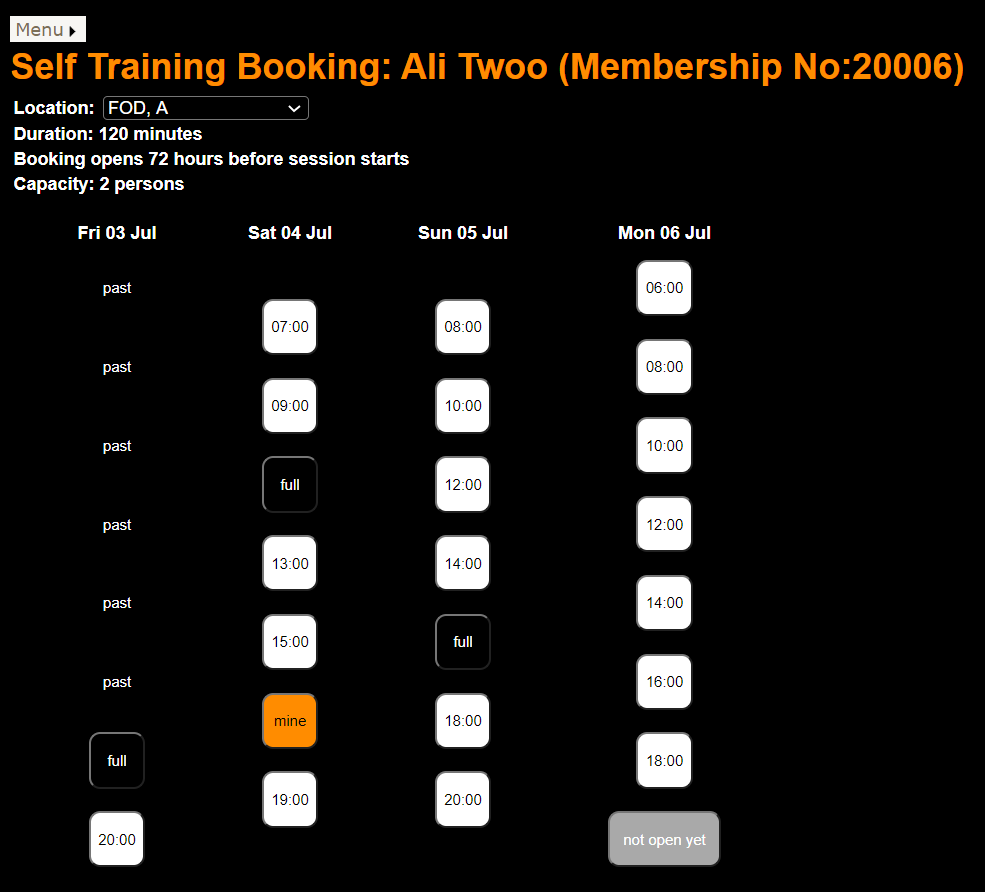
The title is the name of the user currently logged in to CReME.
Location allows the user to select Location in cases where more than one location is available for Self-Training.
Duration and Booking Opens are self-explanatory. The panel below show shows the last session for Monday, 6th July is not open yet because the class commences beyond the booking period. However the class before it is shown with the the Start Time which means it is available for booking.
Capacity is the maximum number of persons allowed per session. If this number is reached, that session is displayed as "full" and is no longer available for booking. In this example, the capacity has been set very low (2) to illutrate all possible booking scenarios. Typically, larger capacities will be used depending on the size of the club.
| Status of Session | Description |
|---|---|
| available | When the Start Time of the session is displayed, this means the session is available for booking. |
| click to confirm | When the user clicks on an available session, the icon changes to click to confirm. If the user clicks on the "Confirm" button below, the booking is confirmed followed by a confirmation email. If the user does not click "Confirm", no further action will be taken by CReME™. If the user decides not to Confirm and clicks another available session, the previous session changes back to available and the just clicked session changes to click to confirm. |
| full | This session has reached Capacity so no further bookings are accepted for this session. |
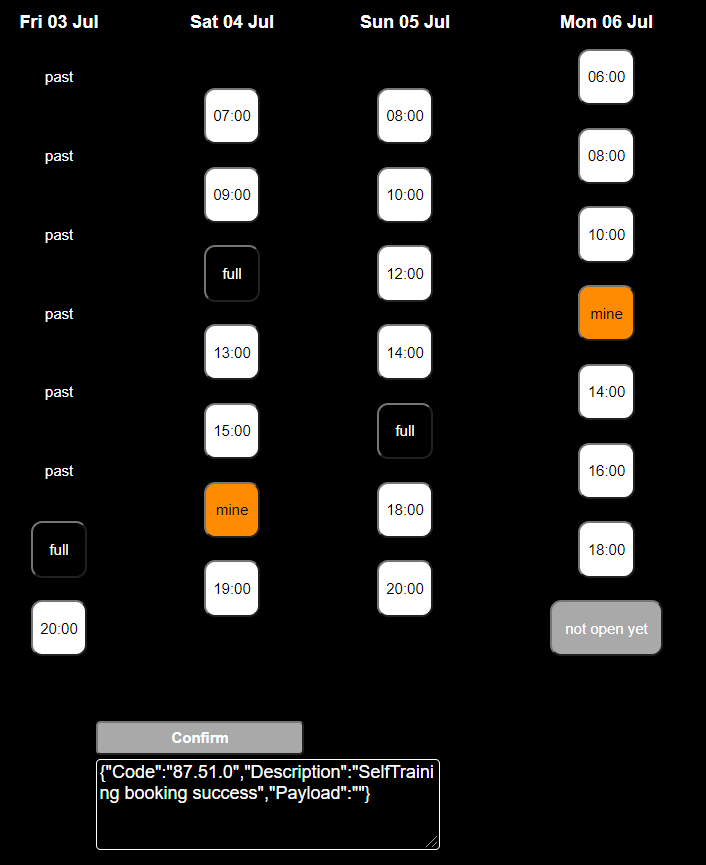
| mine | This sessions have been successfully booked by the user. The user may book multiple sessions in line with club policy on Self-Training. |
| not open yet | The Start Time of this session is beyond the booking period. |
| past | These sessions have already finished. Users are not allowed to book a session in which its End Time has passed. Bookings between Start Time and End Time are permitted. |
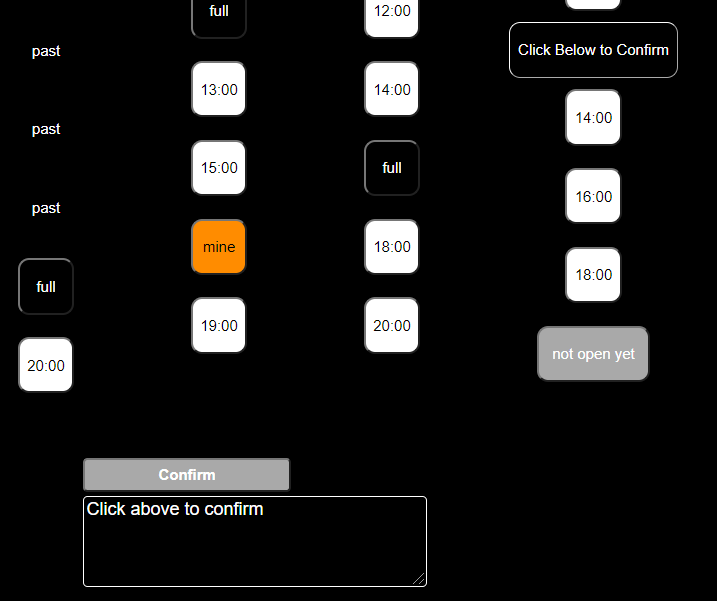
To perform a booking, the user selects an available session. In this example, the user has clicked the 12pm session on Monday, 6th July. The session icon changes to click to confirm.
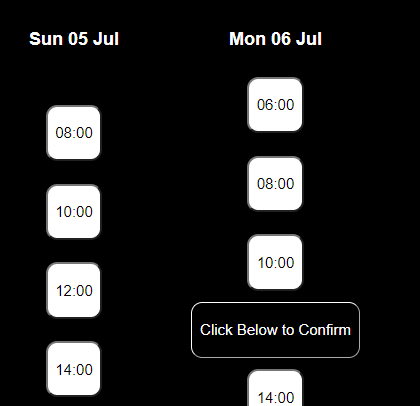
If the user changes his/her mind and would like to book another session, he or she merely clicks another available icon. The previous icon will revert back to available and the latter icon will change to click to confirm.
The following image shows the location of the Confirm button at the bottom of the section containg the session icons.
If the booking is accepted, the status is shown in the text area below the Confirm button and the status of the session icon changes to mine.
This is followed by an email with details of the successful booking.