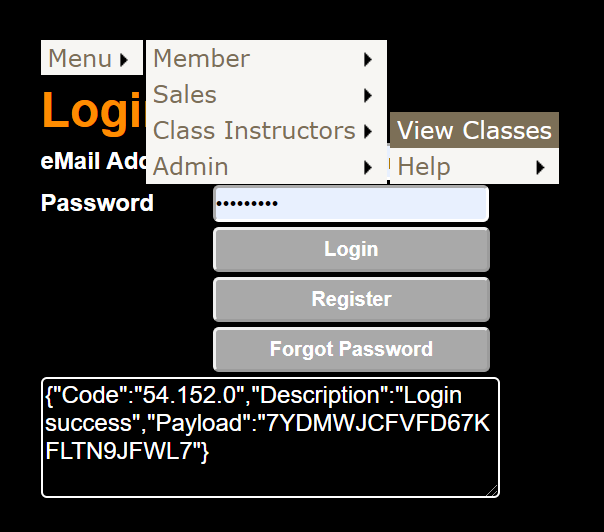
The purpose of this document is to guide Class Instructors on using CReME™ during class execution.
Class ListingAfter the Class Instructor has logged in, he/she can view a list of classes that will be led by him/her.
This is a personal list meaning that each instructor will only be able to see classes assigned to him/her. She/he will not be able to see classes assigned to other Class Instructors.
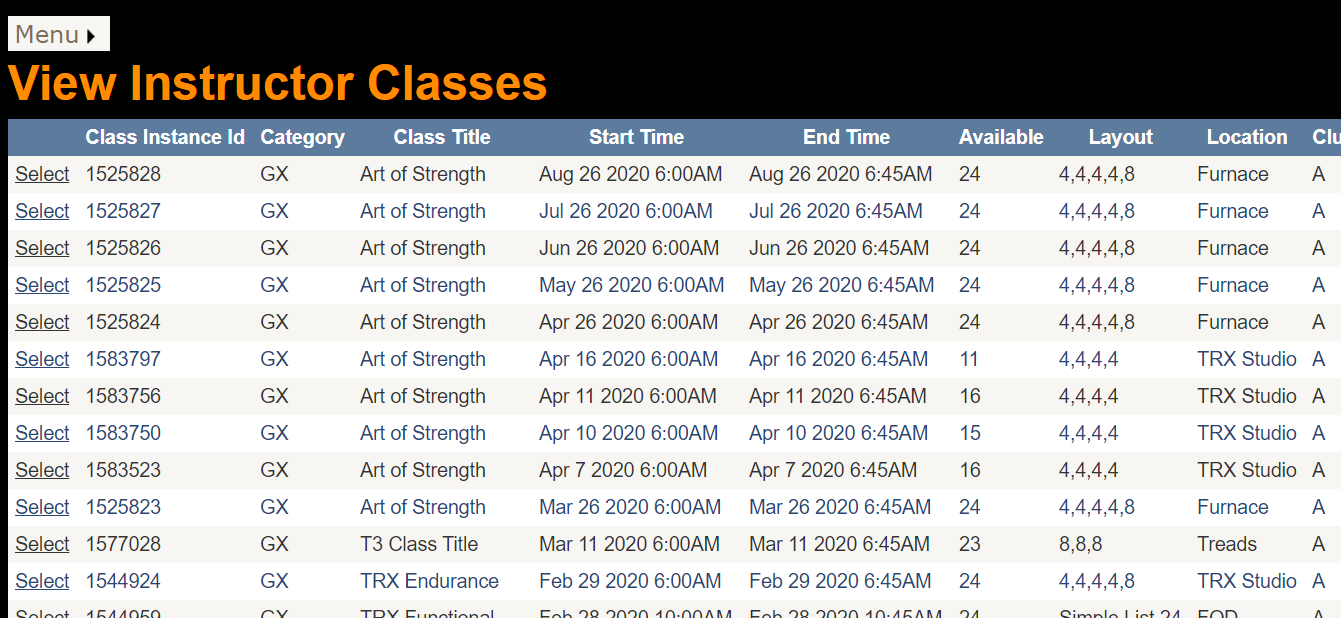
In "View Instructor Classes", one is able to see the list of classes assigned to the instructor. Later classes appear on top. The instructor selects the class he/she is about to teach by clicking "Select".
Train a ClassClicking "Select" brings the instructor to the Class Layout. There are two types of Class Layout:
The screenshot below shows the first type of Class Layout which is Columns & Rows.
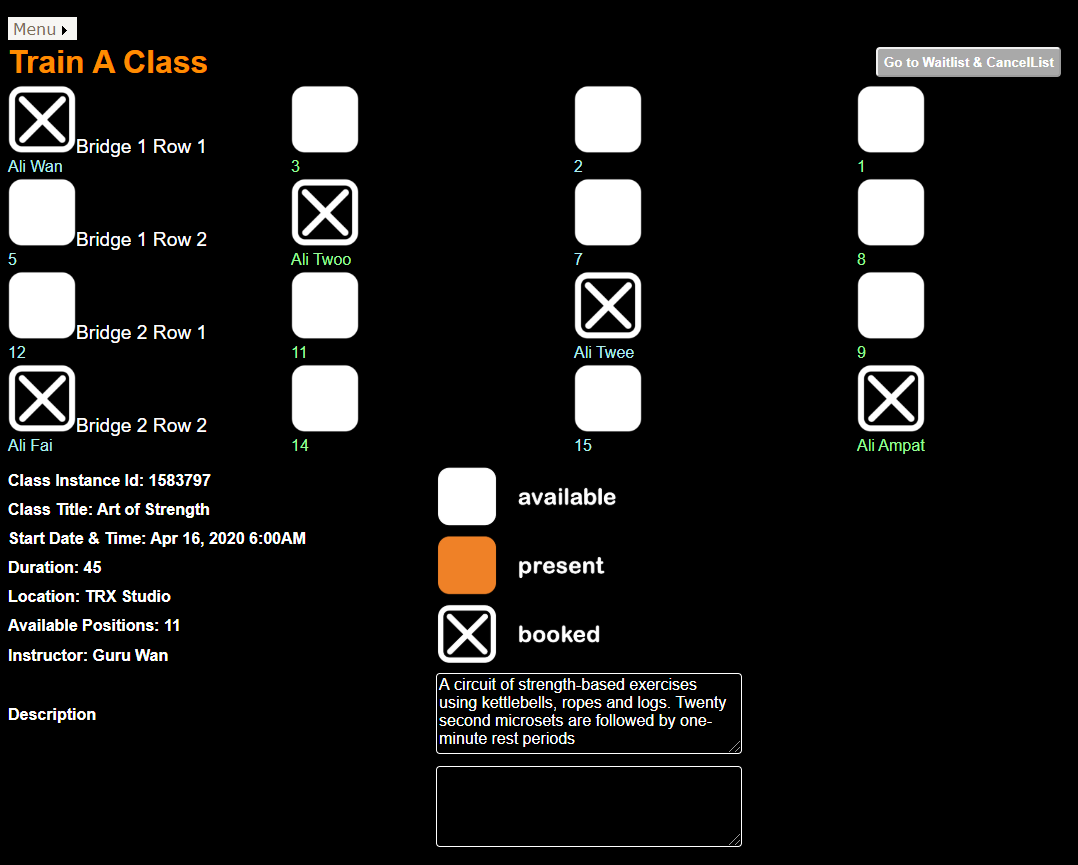
In the example above, the Class Layout consists of 4 rows x 4 columns. 5 positions have been booked with the name of the trainee appearing beneath each "booked" icon.
Each Class Position is displayed using one of the 3 icons (available, present or booked).
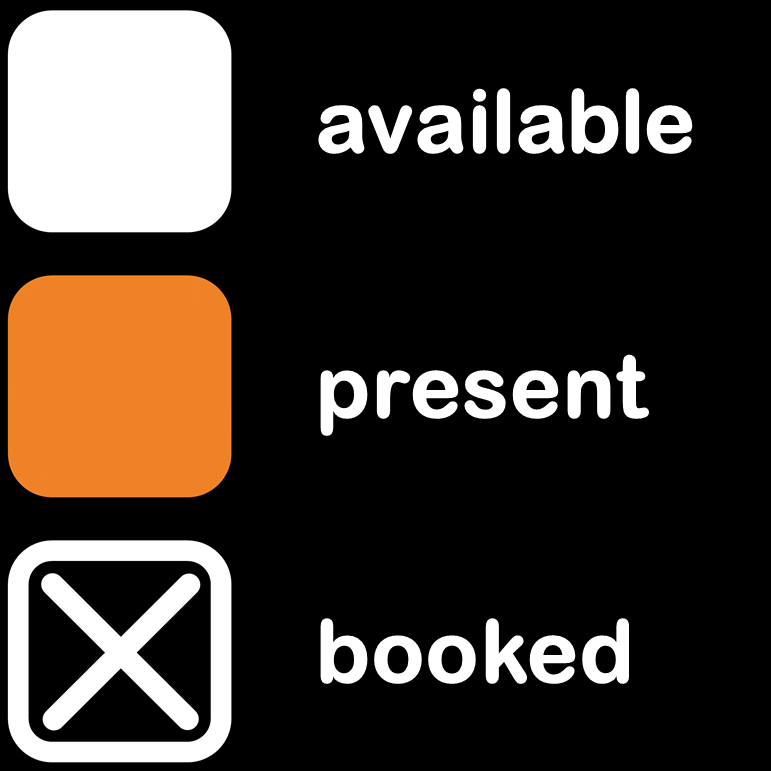
So far, none of the trainees have turned up for class.
The top right hand corner of the screen has a "Waiting List and Cancellation List" button. This will be explained further down in this document.
There is another type of Class Layout which is Simple List. Not all classes are displayed in a 2-dimensional Columns & Rows format. Some classes do not assign positions to the trainees. This is when Simple List is used. An sample screenshot for Simple List is shown below.
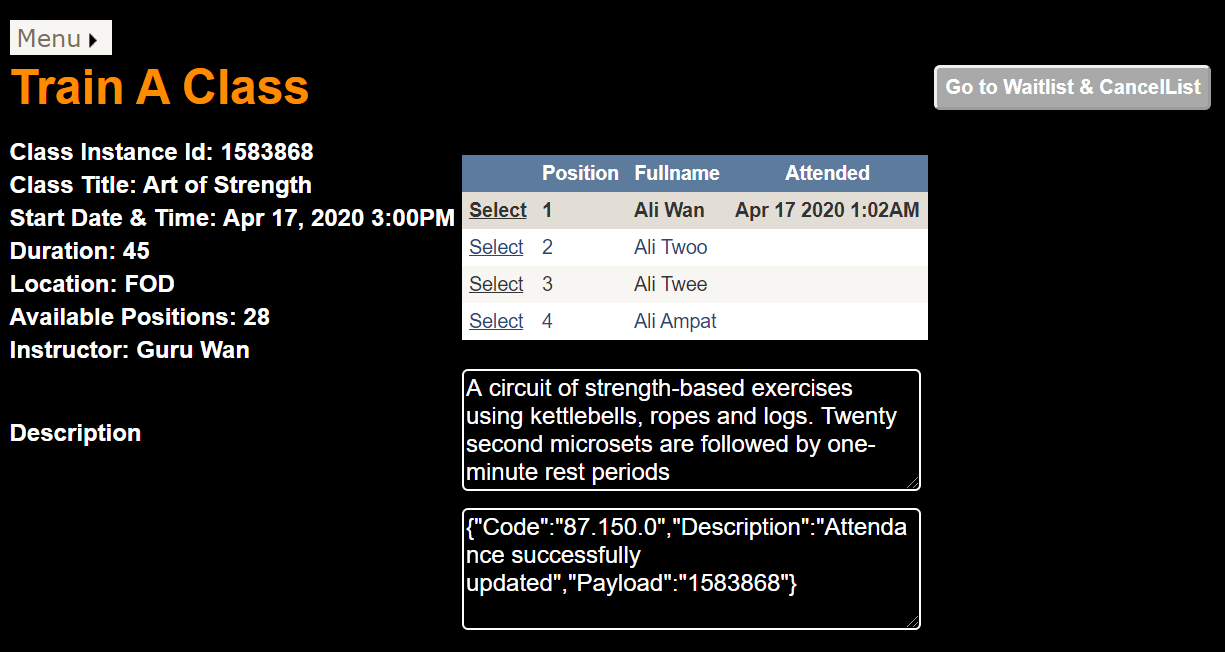
Instead of Columns & Rows, the instructor sees a list of trainees who have signed up to attend this class.
Taking Attendance - Columns & RowsIn this section, we'll see how to take attendance for Columns & Rows. In the next section, we'll see how to do this for Simple List.
Let's assume Ali Twee just turned up for today's class. The Class Instructor taps on Ali's icon to record his/her attendance.
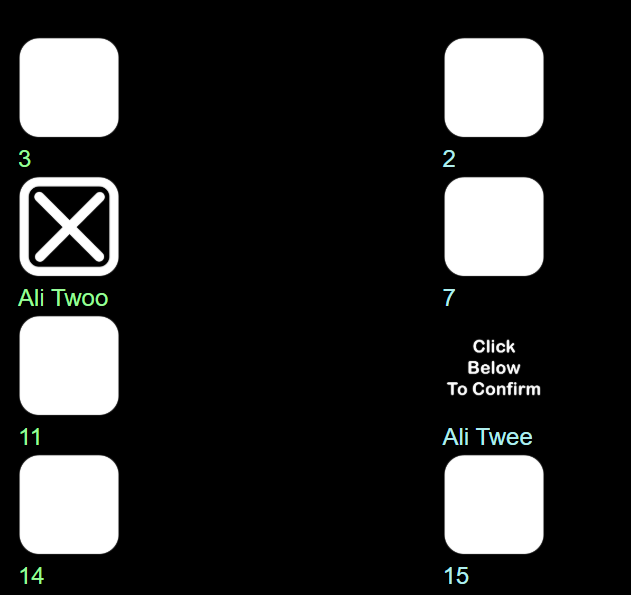
The icon changes to "Click Below To Confirm".
After the instructor taps the "Confirm" button, the icon changes to "Present". This means attendance has been recorded for that trainee.
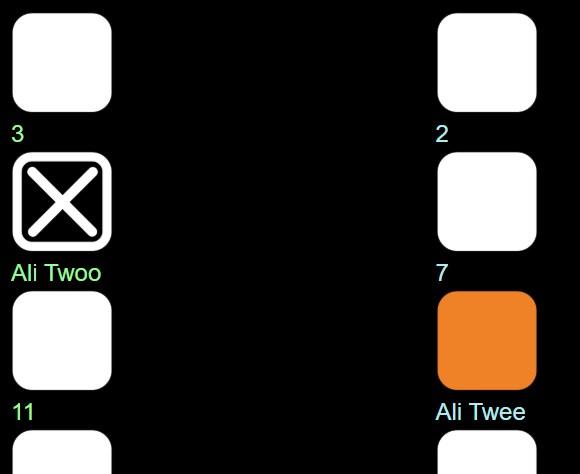
If the icon does not change to "Present", please check the Status Message box below. Some clubs have rules preventing taking attendance if it is too early to do so.
Taking Attendance - Simple ListIn this section, we'll see how attendance is taken for Simple List. Let's assume Ali Twee just walked in and the Class Instructor has clicked on the row with Ali Twee's name on it.
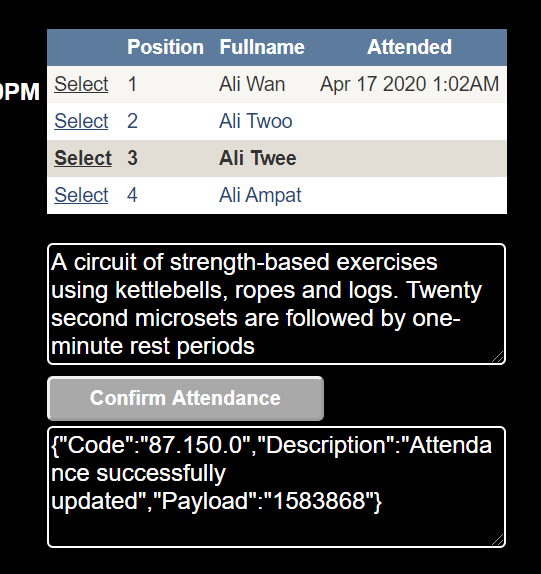
After clicking on Ali Twee's row, the "Confirm Attendance" button appears.
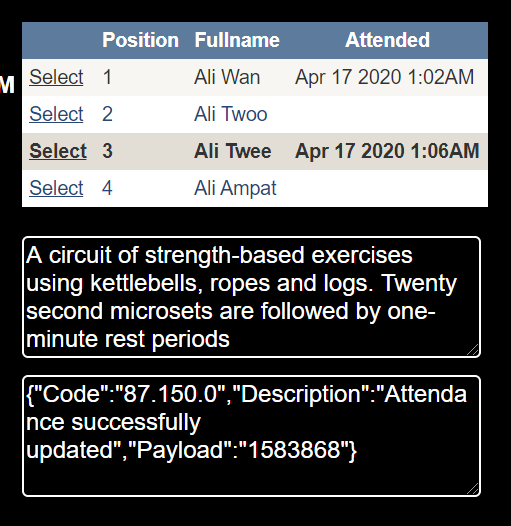
After clicking the "Confirm Attendance" button, the date and time appears in the "Attended" column for Ali Twee. The "Confirm Attendance" button disappears until this cycle is repeated.
Waiting List & Cancellation ListClicking on the "Go to Waitlist & Cancellist" will display the Waiting List and the Cancellation List.
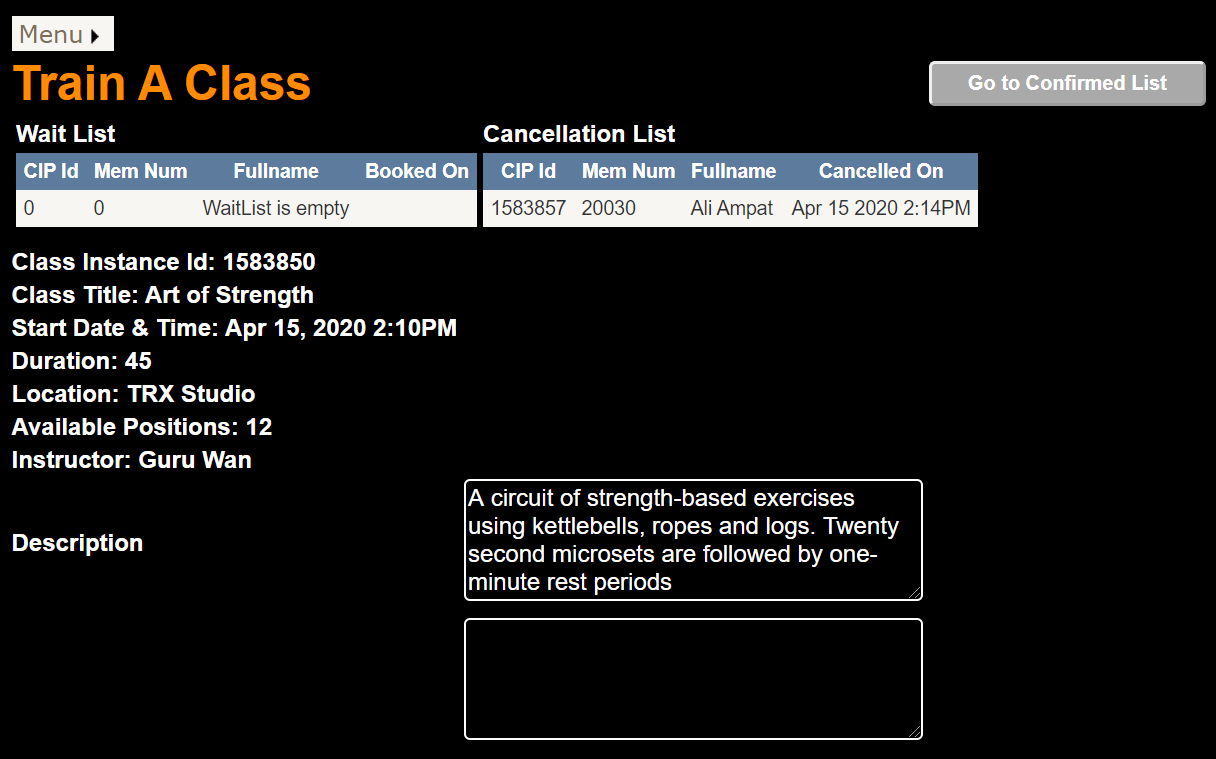
The Waiting List consists of trainees who tried to book a Class Position but were not able to because the class was full. However, their request has been recorded in CReME™. In case someone doesn't show up, they will be given a position provided this feature has been activated. Please contact admin@bizt.my for further information.
The Cancellation List is those trainees who made a booking and later cancelled it.