This document guides the user on how to perform a Class Booking. It is divided into the following parts:
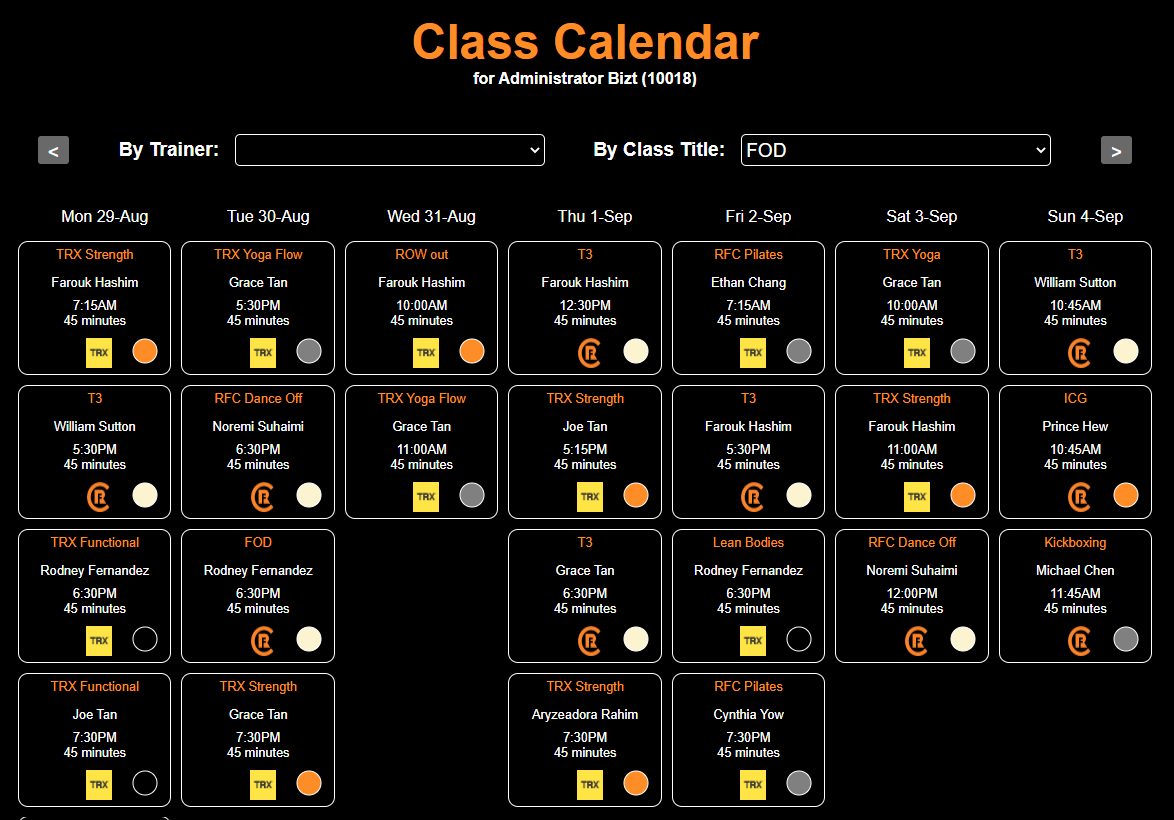
To display the Class Calendar, perform a Search Person and Select "Book a Class" from the list of Actions. Clicking on the left and right grey arrow buttons moves the calendar back or forwards by a day.
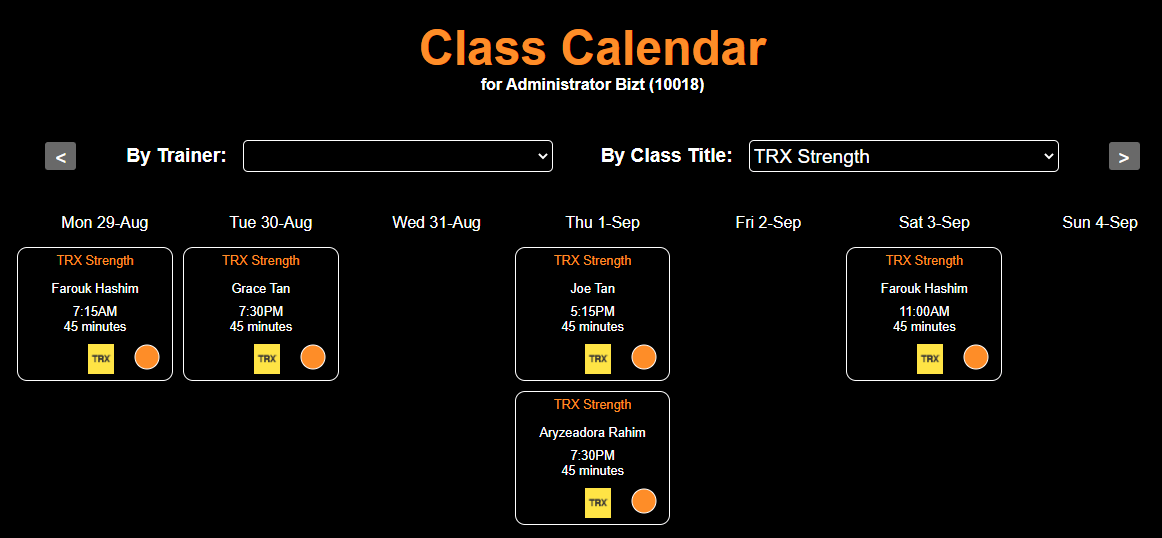
To filter the Class Calendar by title, select a title from the drop down list labelled "By Class Title".
To filter the Class Calendar by trainer, select a title from the drop down list labelled "By Trainer".
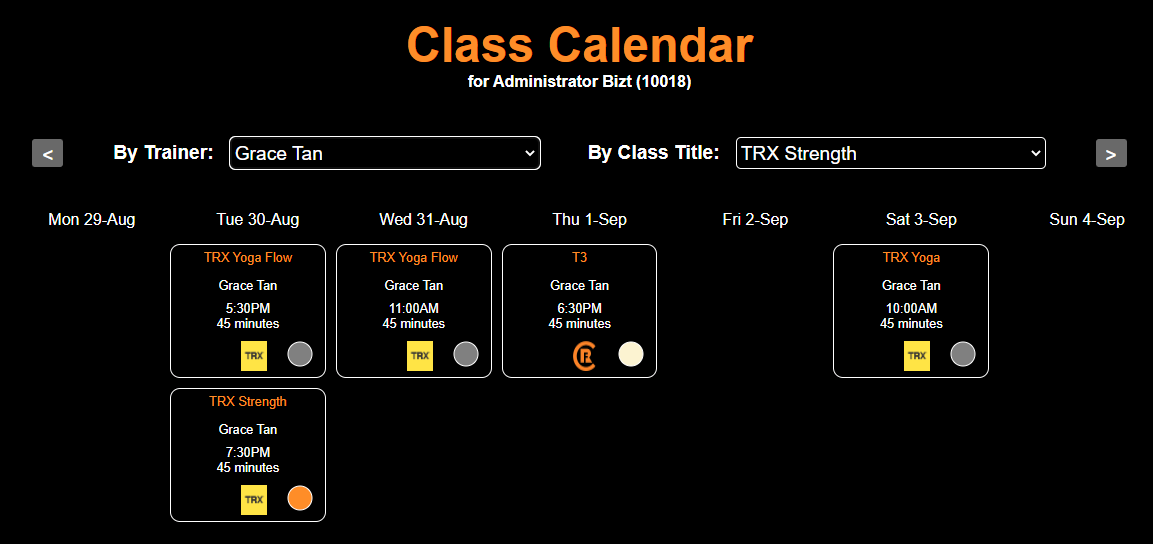
Once the desired class hass been located, the user clicks on the class to make a booking.
The user is led to the Class Layout page where the user will see one of the following layouts:
The image below shows a class layout in the form of columns and rows.
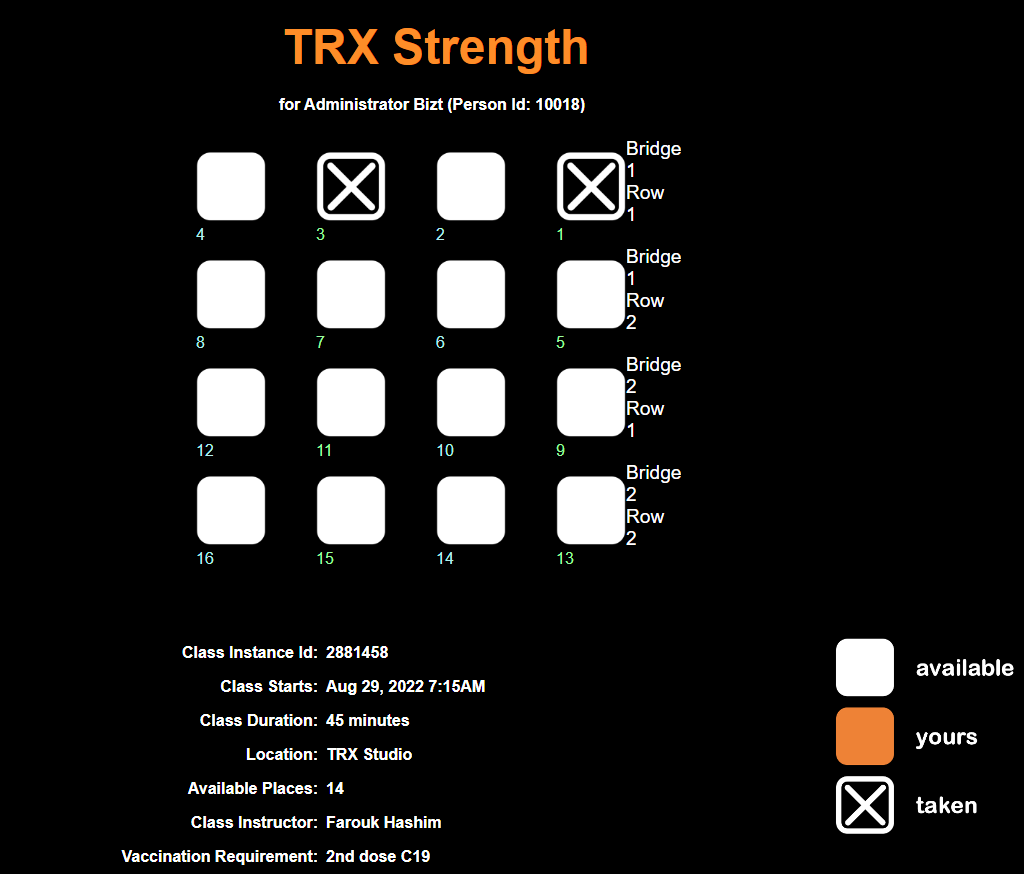
To book a position in the class, the user clicks an available position. The position changes to display the words "Click Below to Confirm"
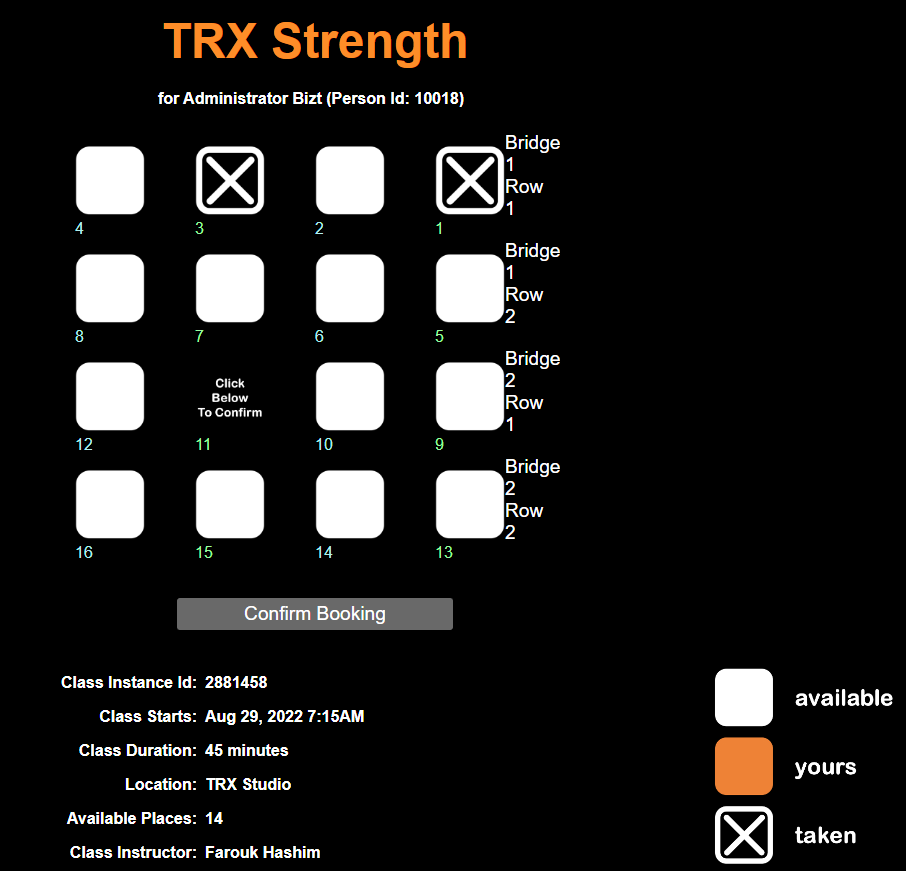
After the user clicks on the "Confirm" button, he/she receives an email confirming that the booking was successful.
D3. Simple ListThe image below shows a class layout in the form of a simple list.
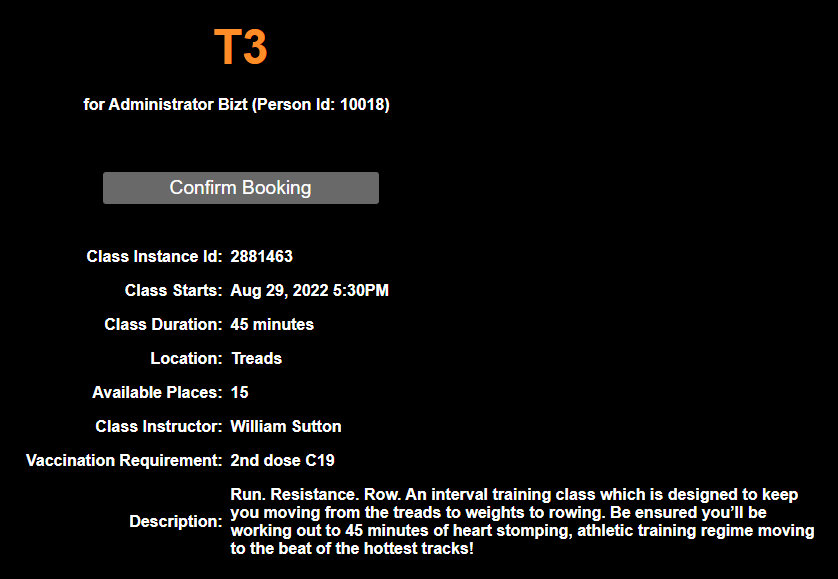
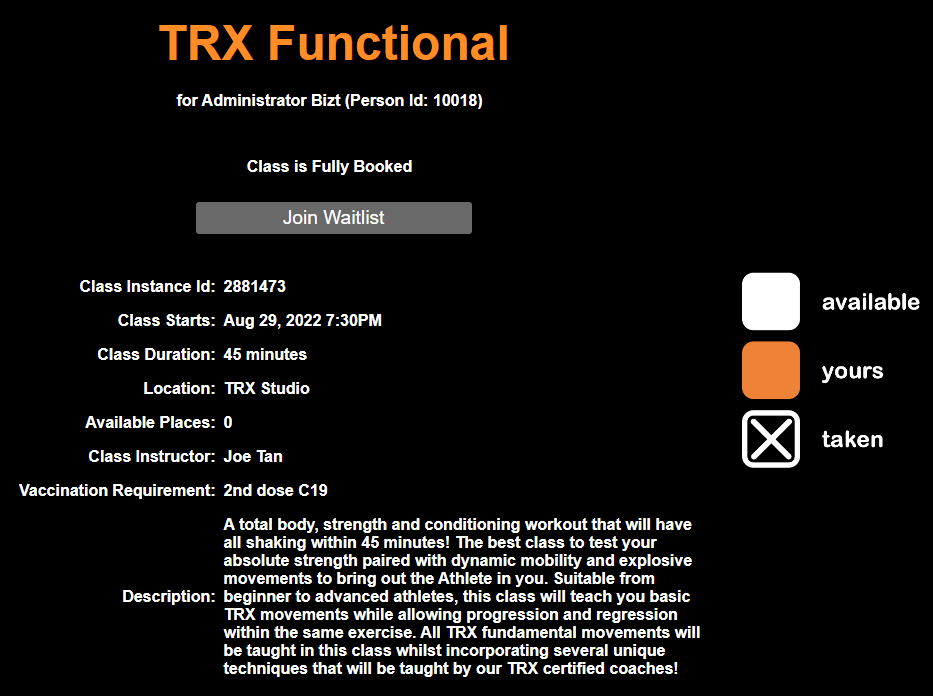
In cases where the class is full, the user is placed on the wait list. He/she will receive a confirmation email after a place becomes available. The image below shows the wait list page.